See Aisman in action
A closer look at the real screens Aisman uses to track issues, prompts, AI sessions, and verification—end to end.
Dashboard
Project overview, statistics, and quick-access tools at a glance.
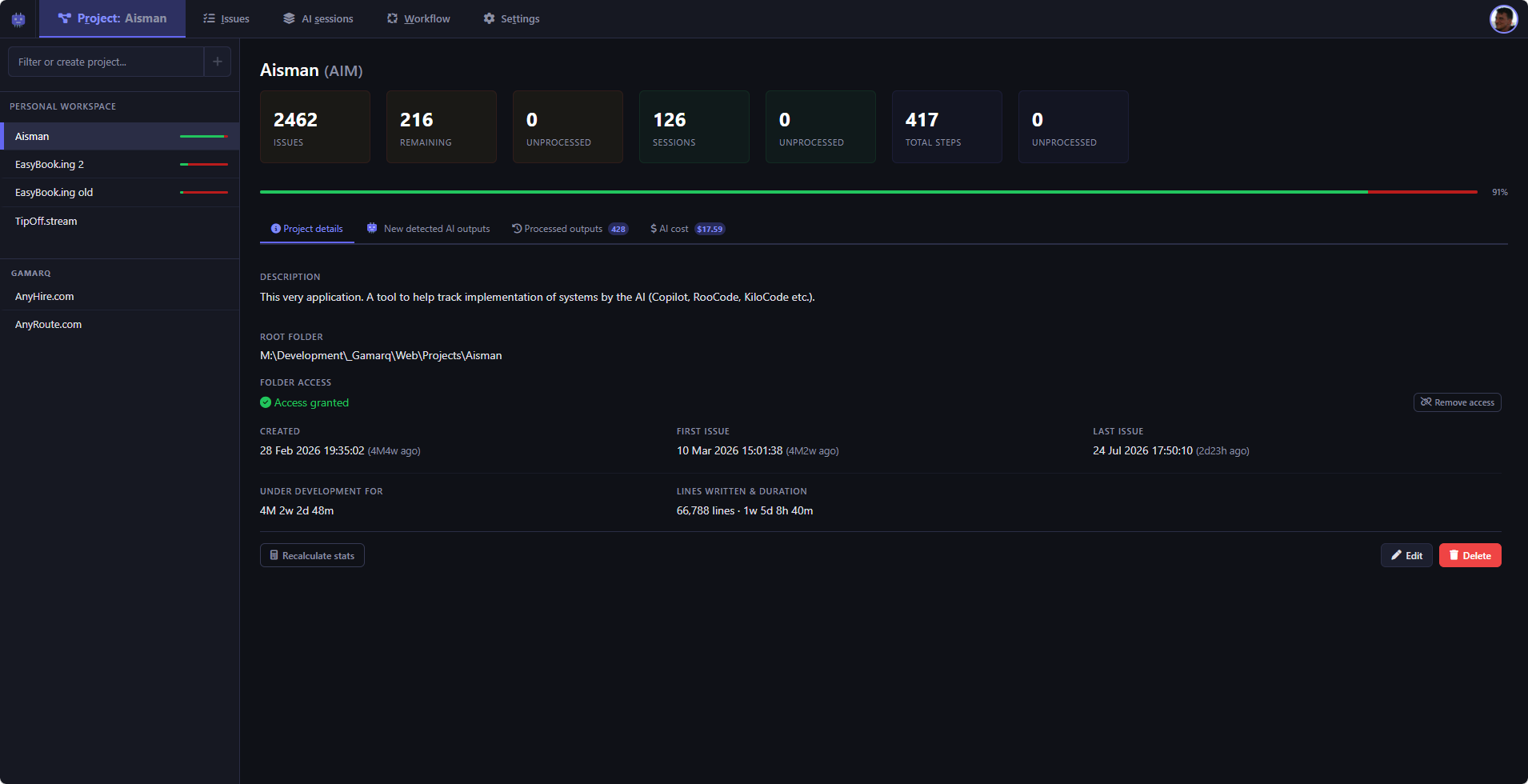
Dashboard
A single **overview of a project's health**: total issues, remaining work, AI sessions, steps, and lines written. See how long a project has been under development and breakdown of costs.
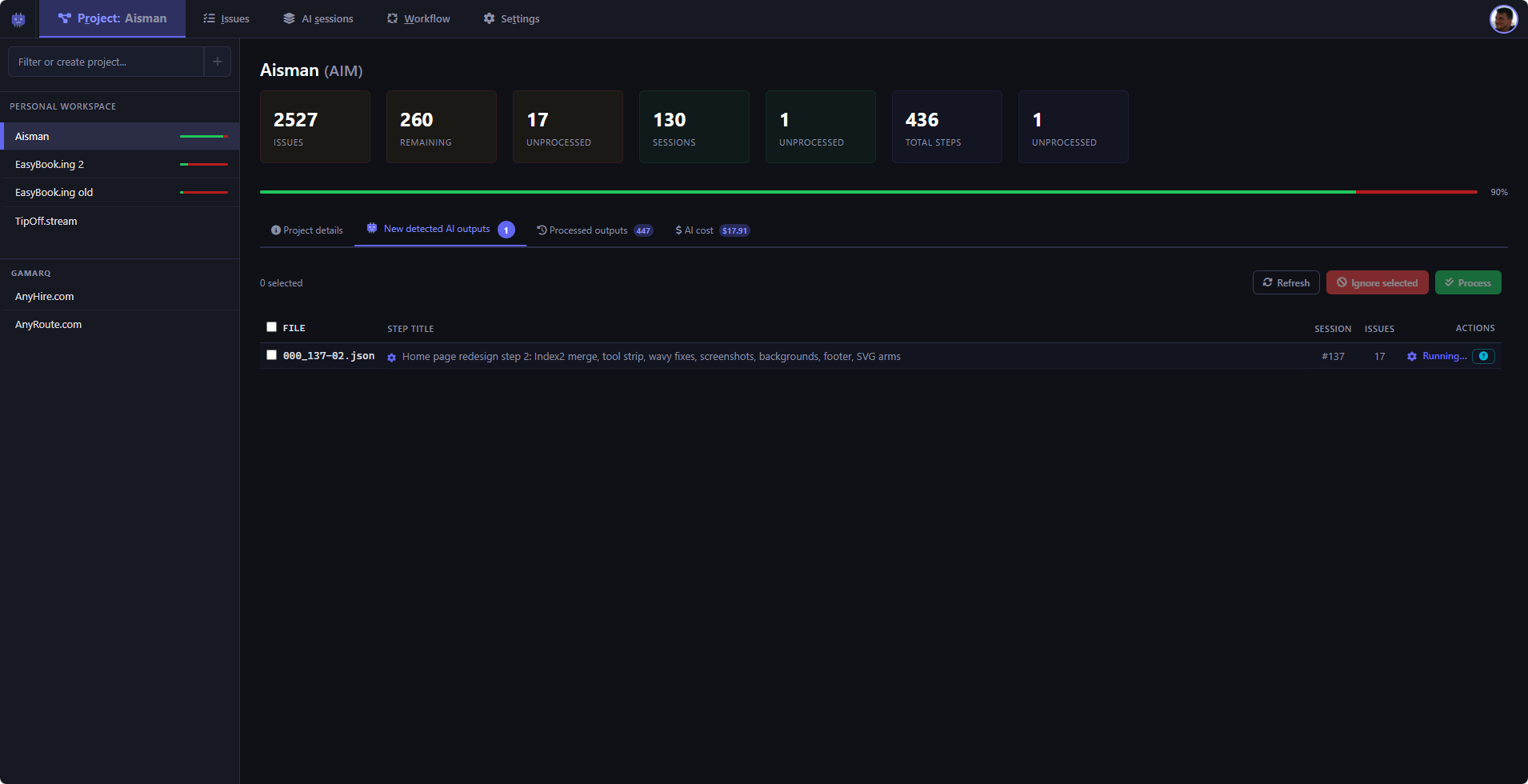
New AI outputs detected
Aisman detects new output files and shows their status. When ready, it lets you process those files, which results in session, session step and distinct issues automatic creation.
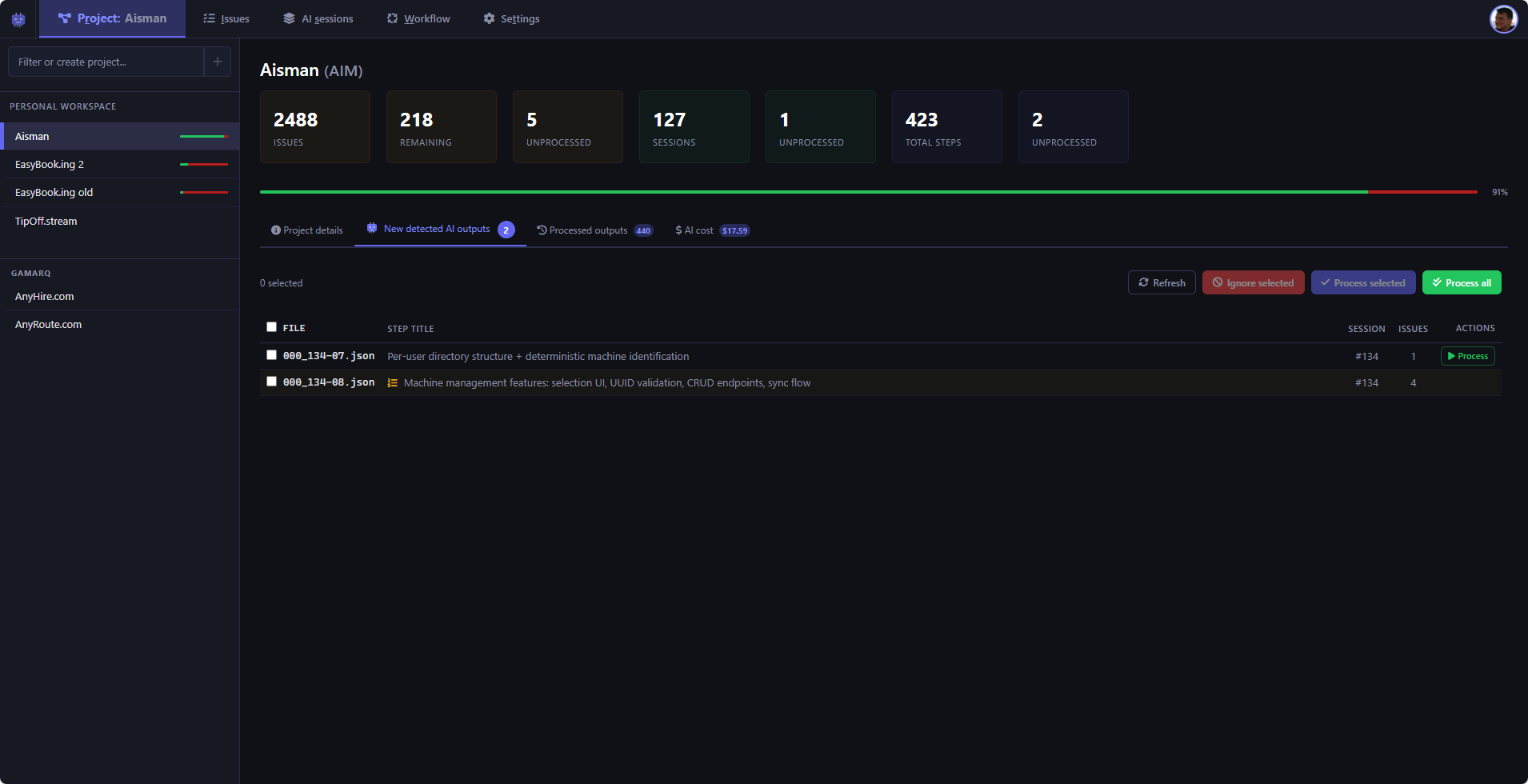
Multiple AI output files
Multiple output files detected simultaneously, ready for batch processing.
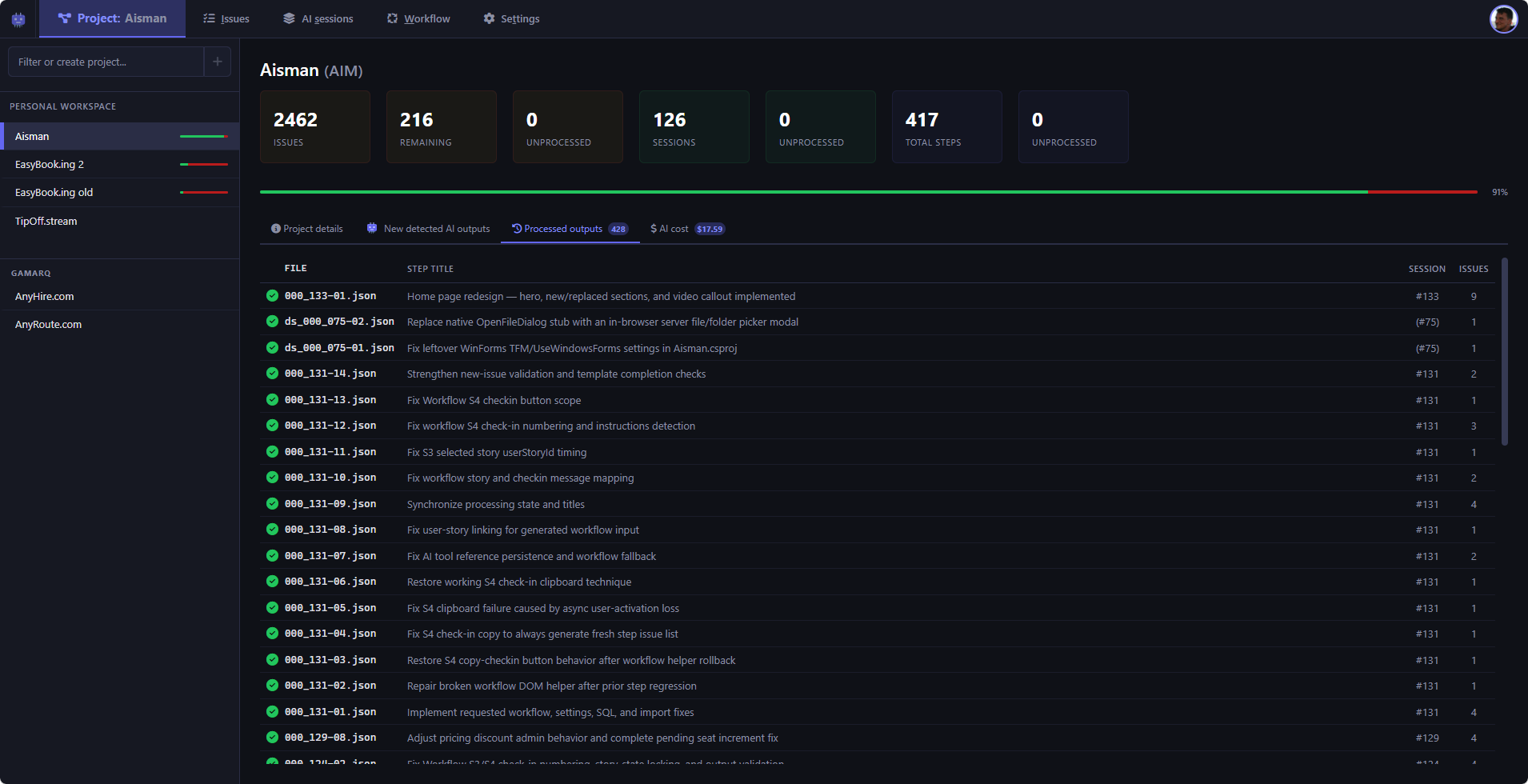
Processed outputs
List of previously processed output files with their results.
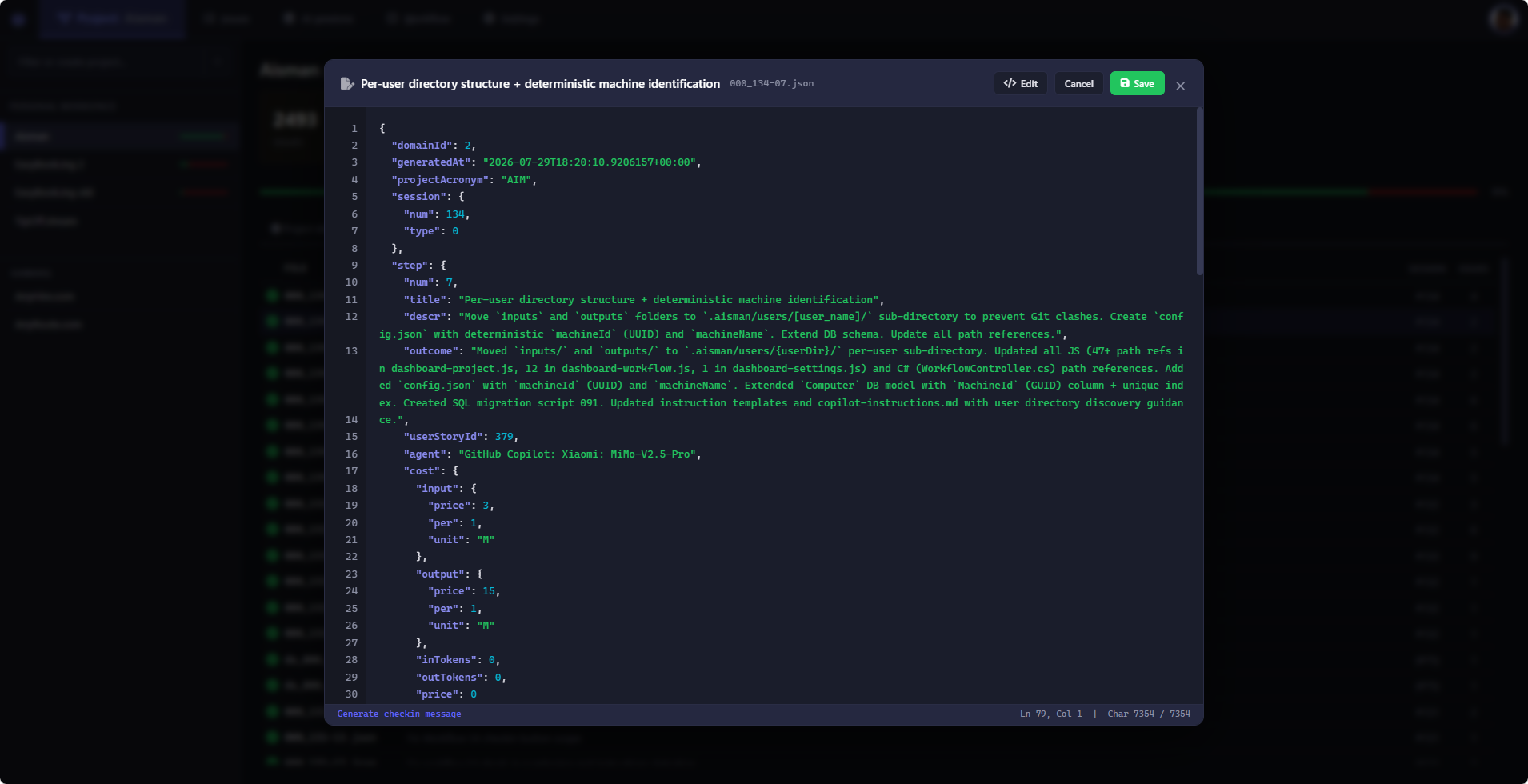
Output file detail
Detailed view of a single output file showing its contents and processing result.
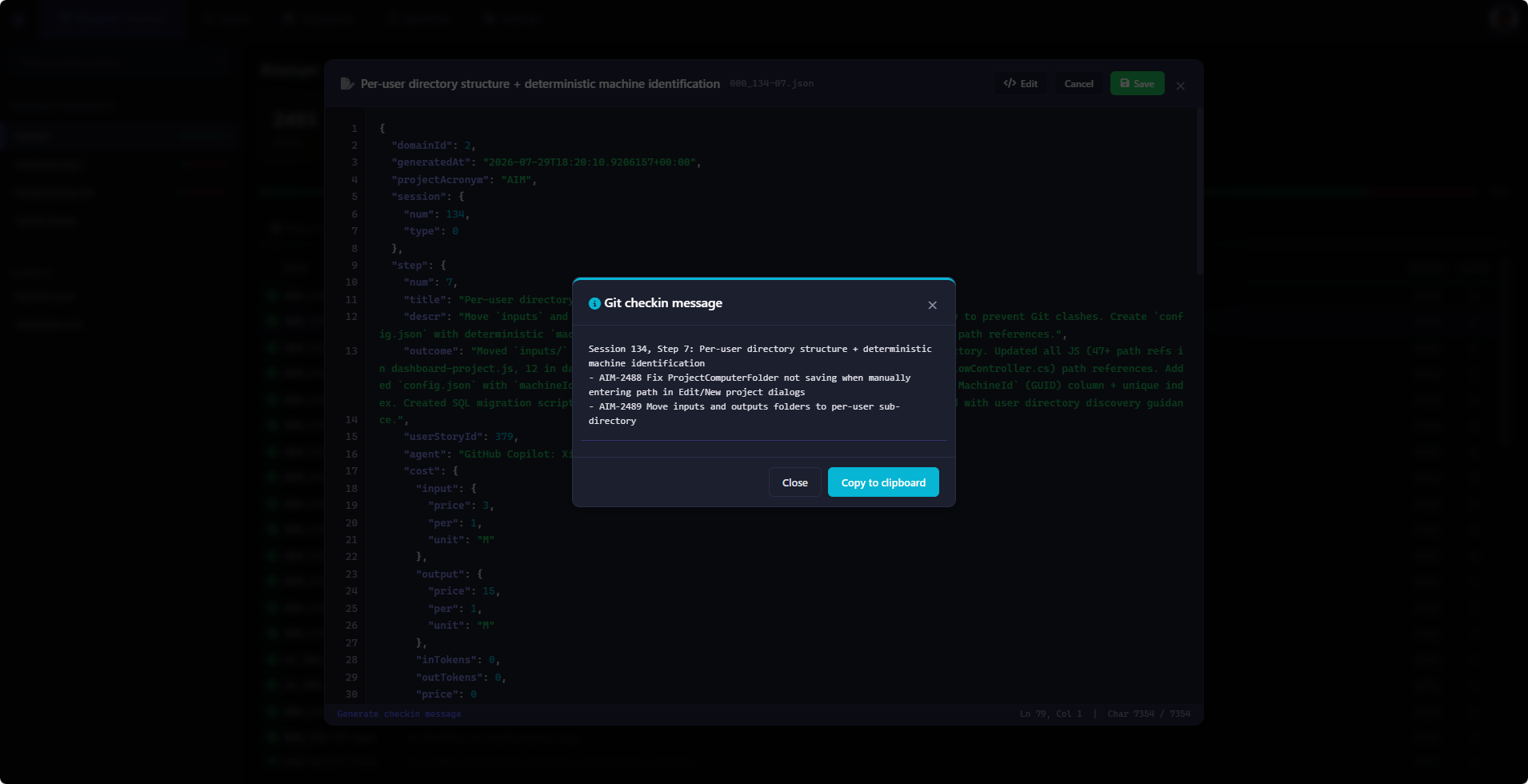
Check-in message
Project check-in message showing the current status and next steps.
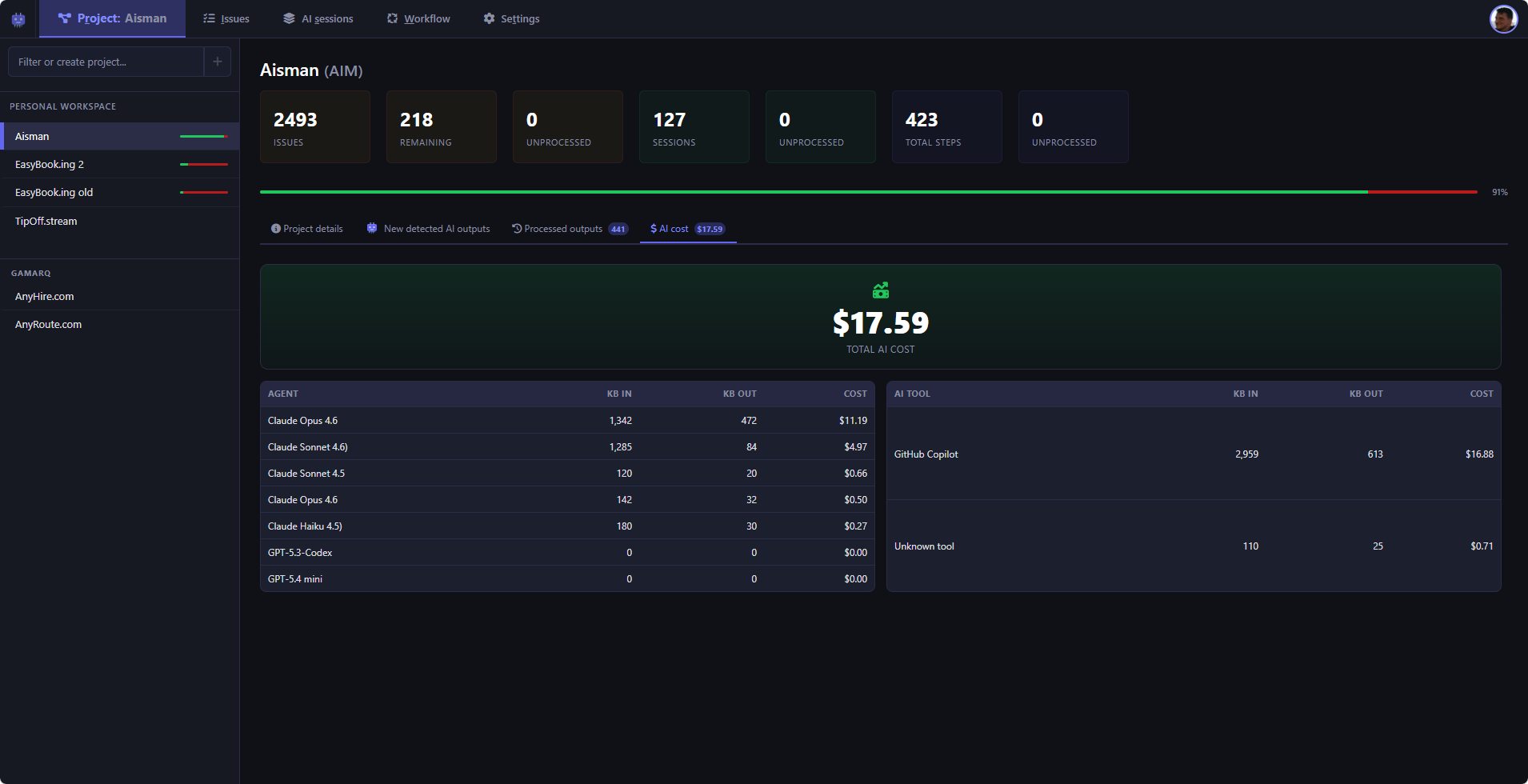
The AI cost tab
Project AI cost breakdown showing usage by user, model, and host.
Issues
Browse, filter, and organize all your issues in one unified view.
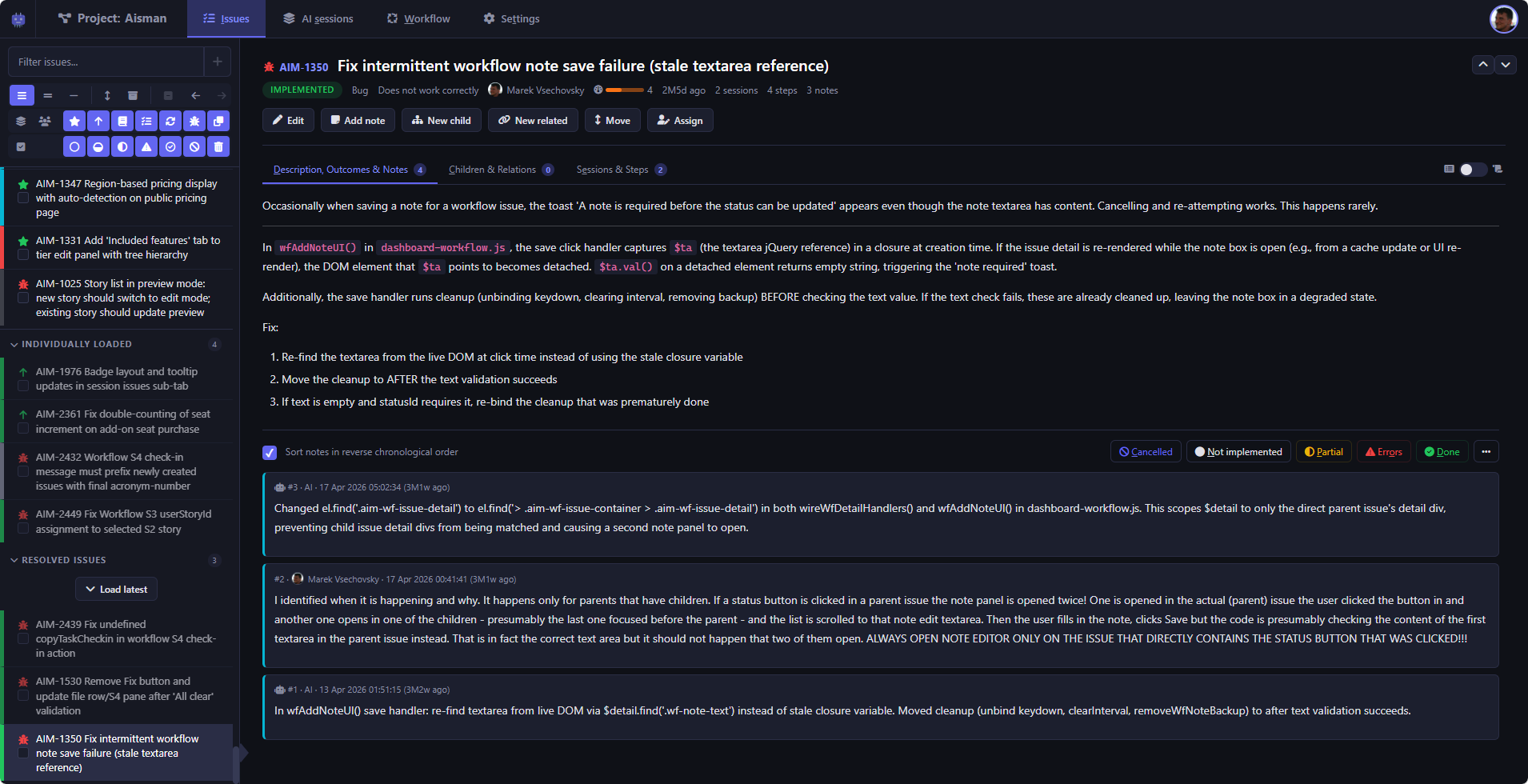
The Issues main tab
Here you'll find the list of every single issue that has been created within the current project. This tab allows you to filter and search issues and of course show full details of every issue.
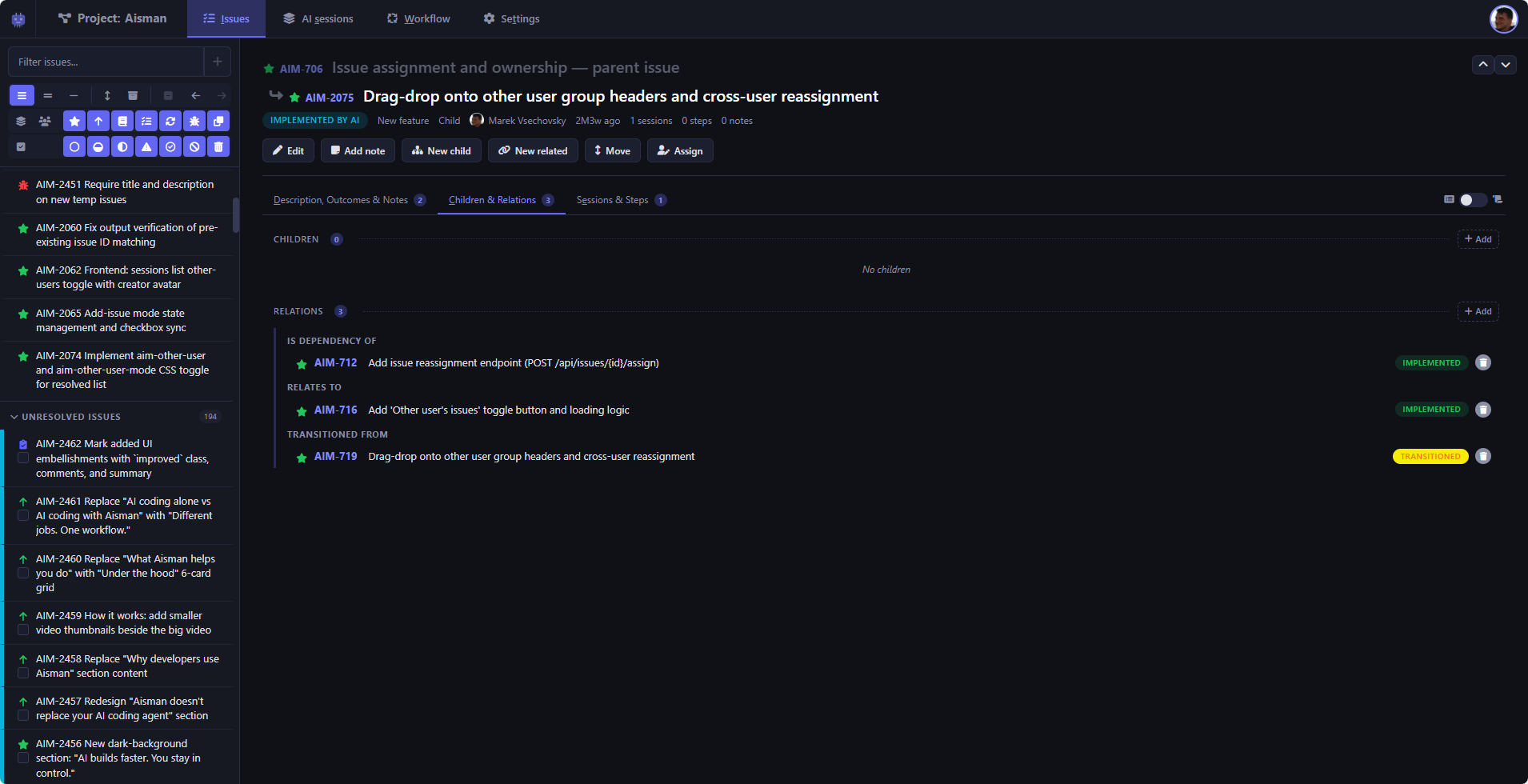
Issue relationships
Issue relations show how the issue relates to other issues or how other issues relate to it. Relations connect issues across your project. An issue can depend on another, extend it, or simply relate to it. Aisman tracks these automatically so you always understand the full picture.
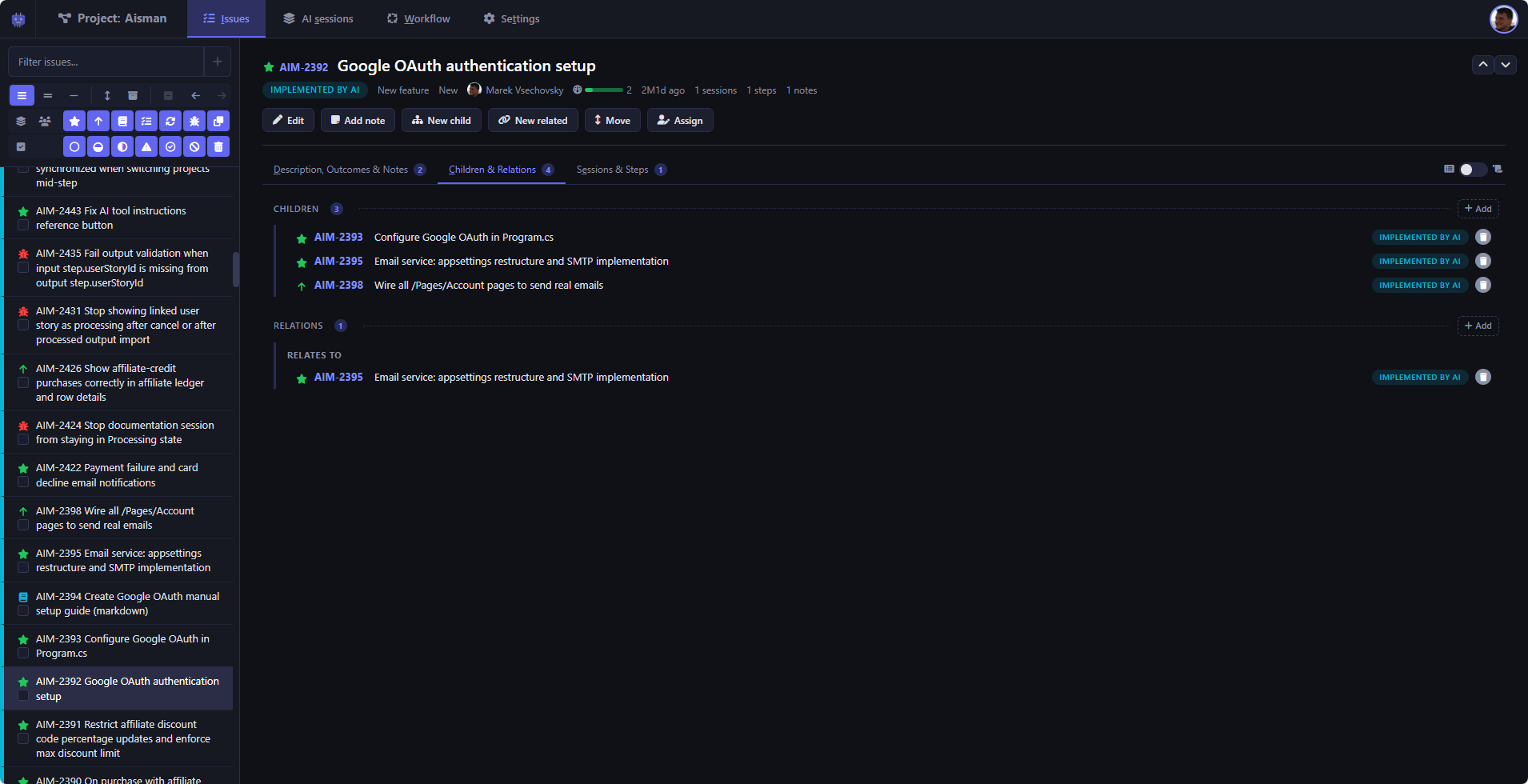
Children and Relations
Parent-child issue hierarchies combined with cross-cutting relations.
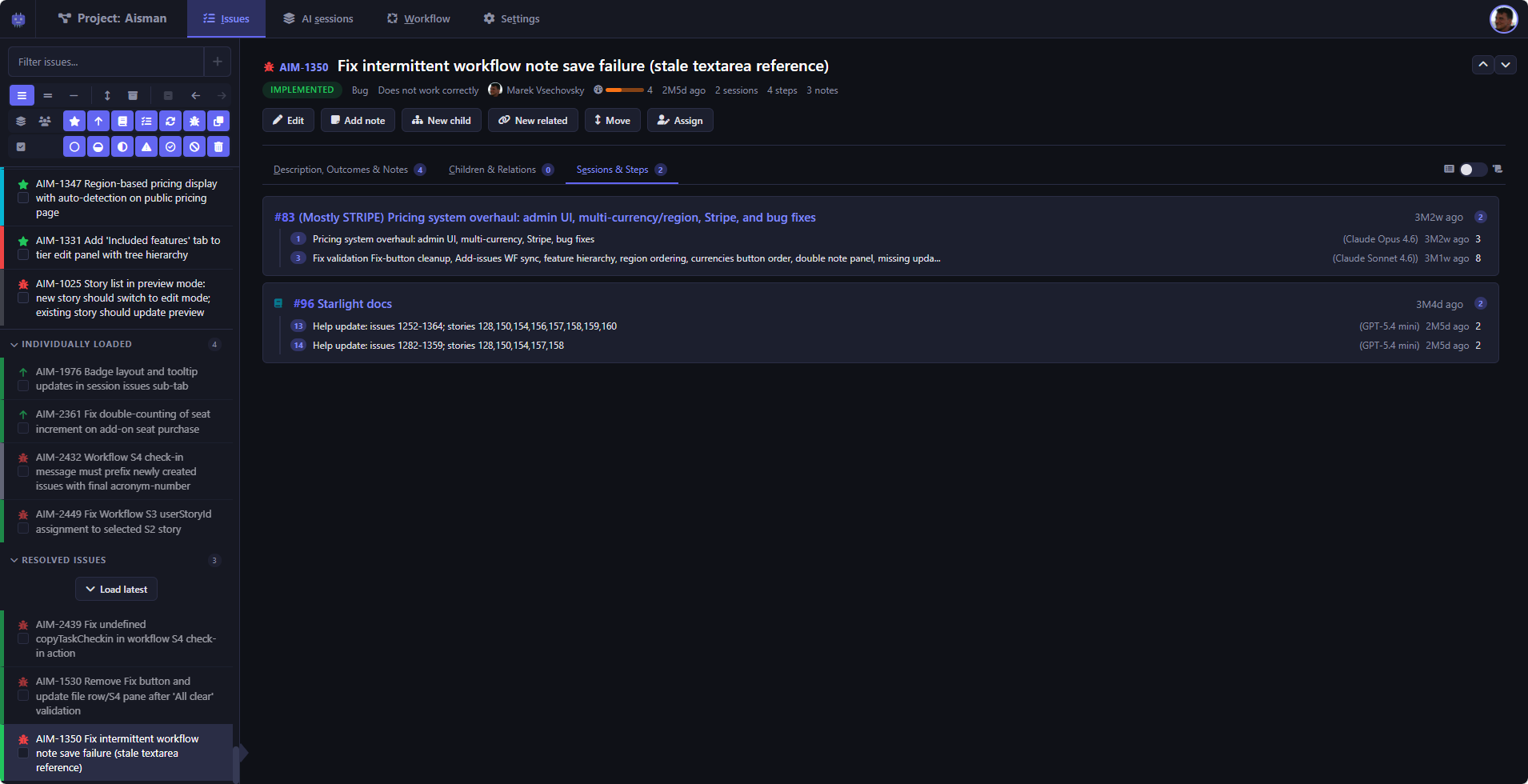
Issue session and step membership
Every issue links back to the AI sessions and steps that touched it, giving you a complete, searchable history of how a feature or fix actually came to be.
AI Sessions
Track every AI coding session — inputs, outputs, and file changes.
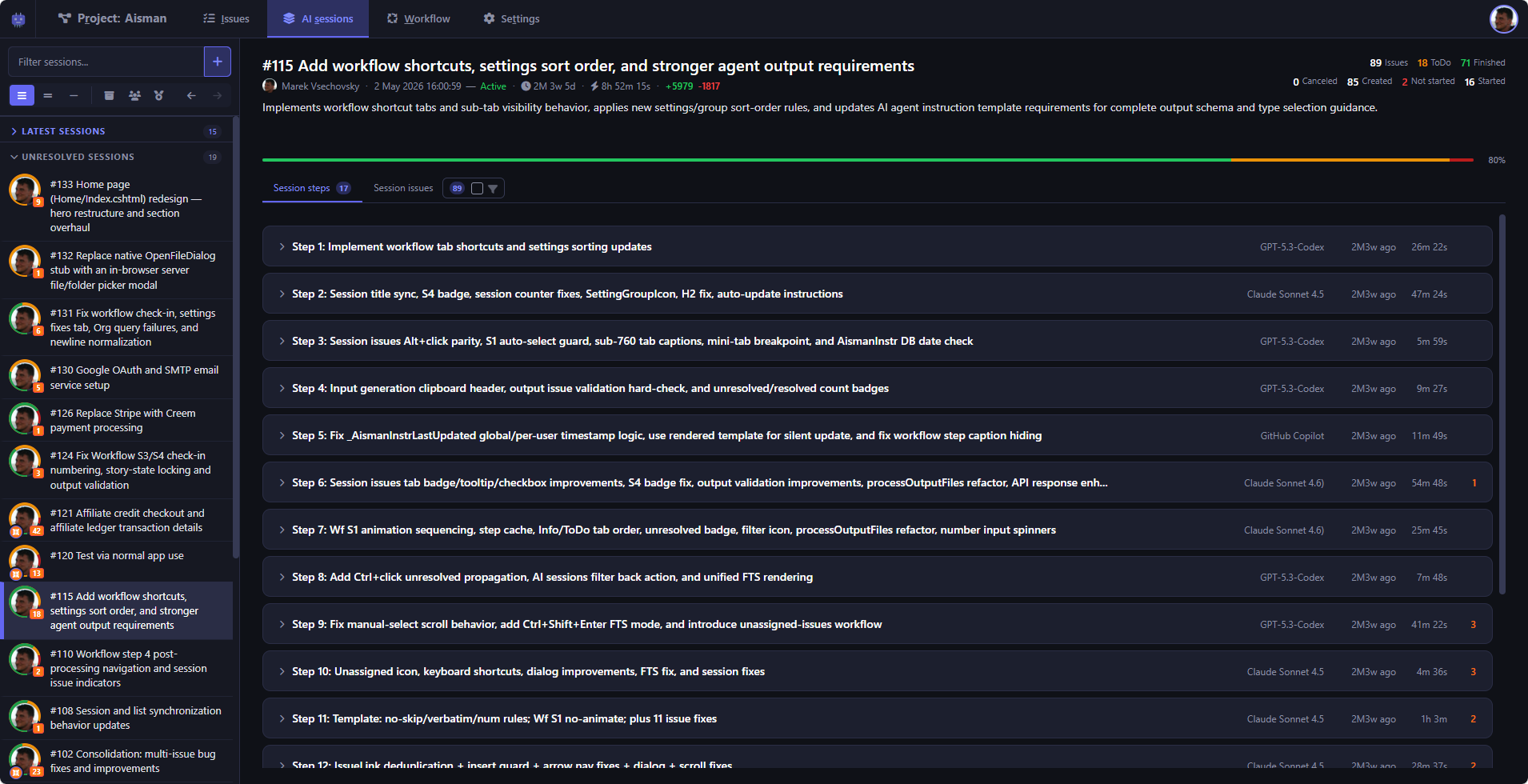
AI sessions
Every AI coding session is tracked step by step, with the tool and agent used, lines added and removed, and a running list of the issues it touched-so nothing gets lost between sessions.
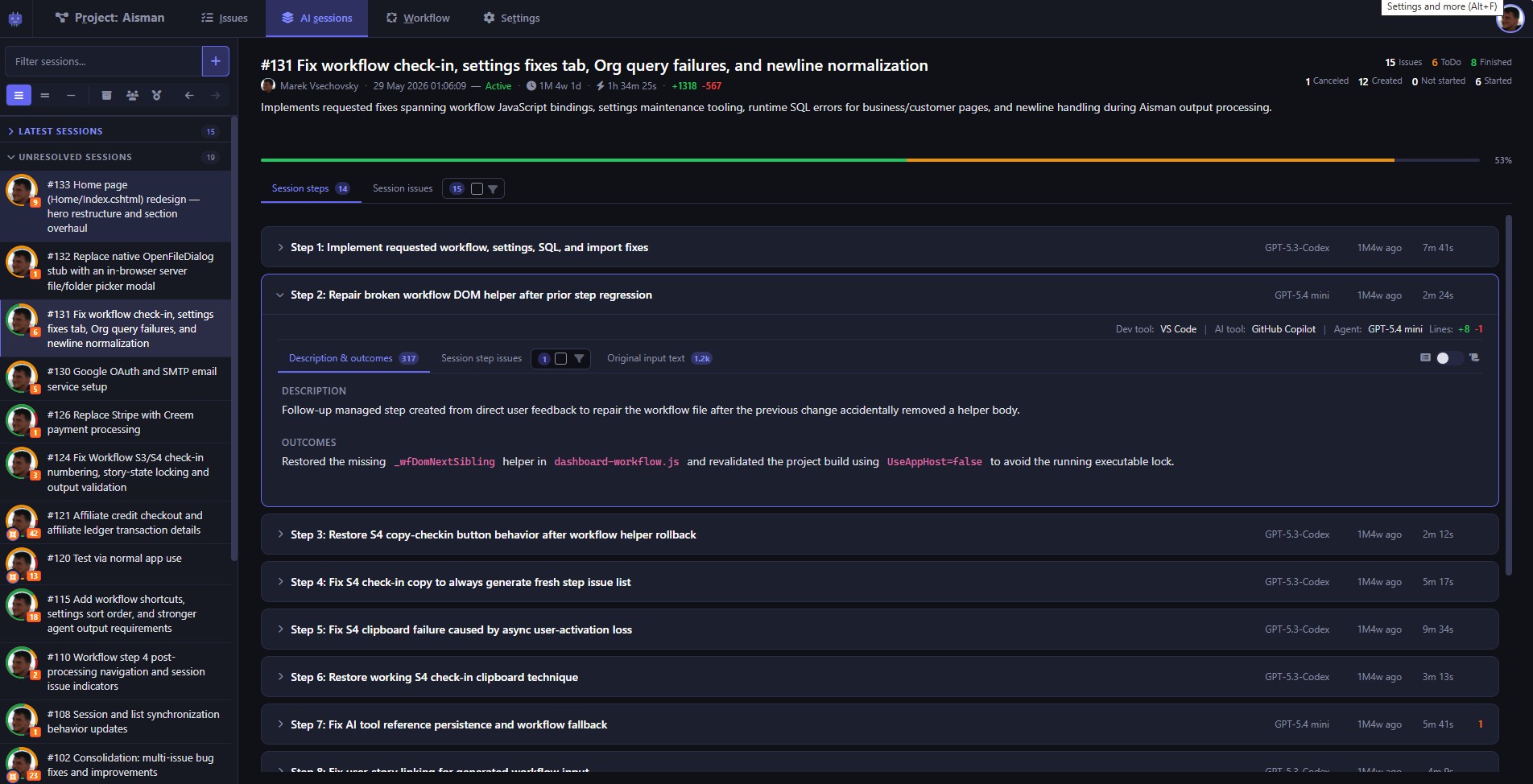
Session steps overview
Overview of all steps within a session, showing the progression of work.
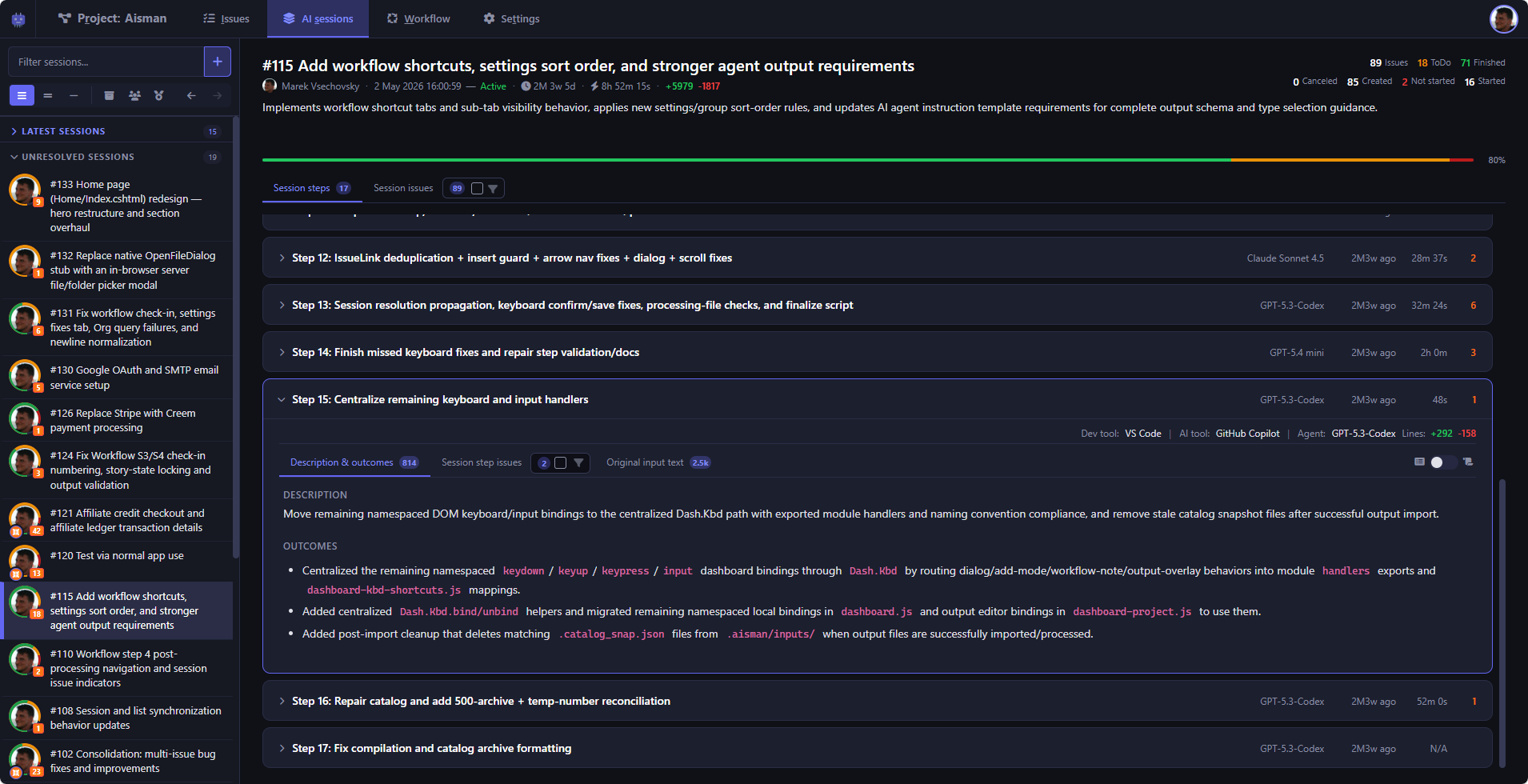
Session step detail
Each session step shows a description of what the AI agent was asked to do, plus the outcome notes recording what actually happened — keeping a clear audit trail.
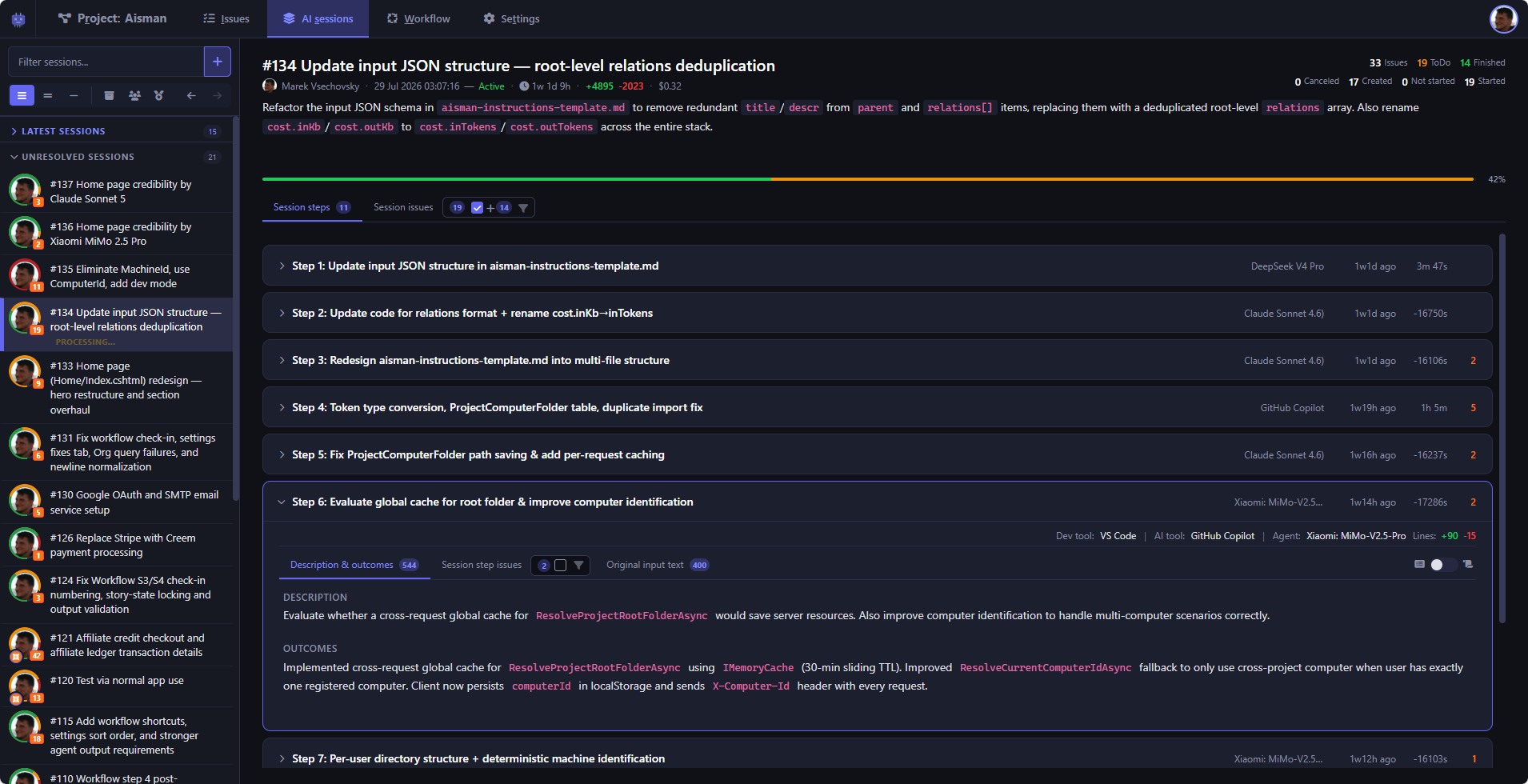
Session step outcomes
The AI agent produces both the summary description of what work the step included and also the outcome of the implementation.
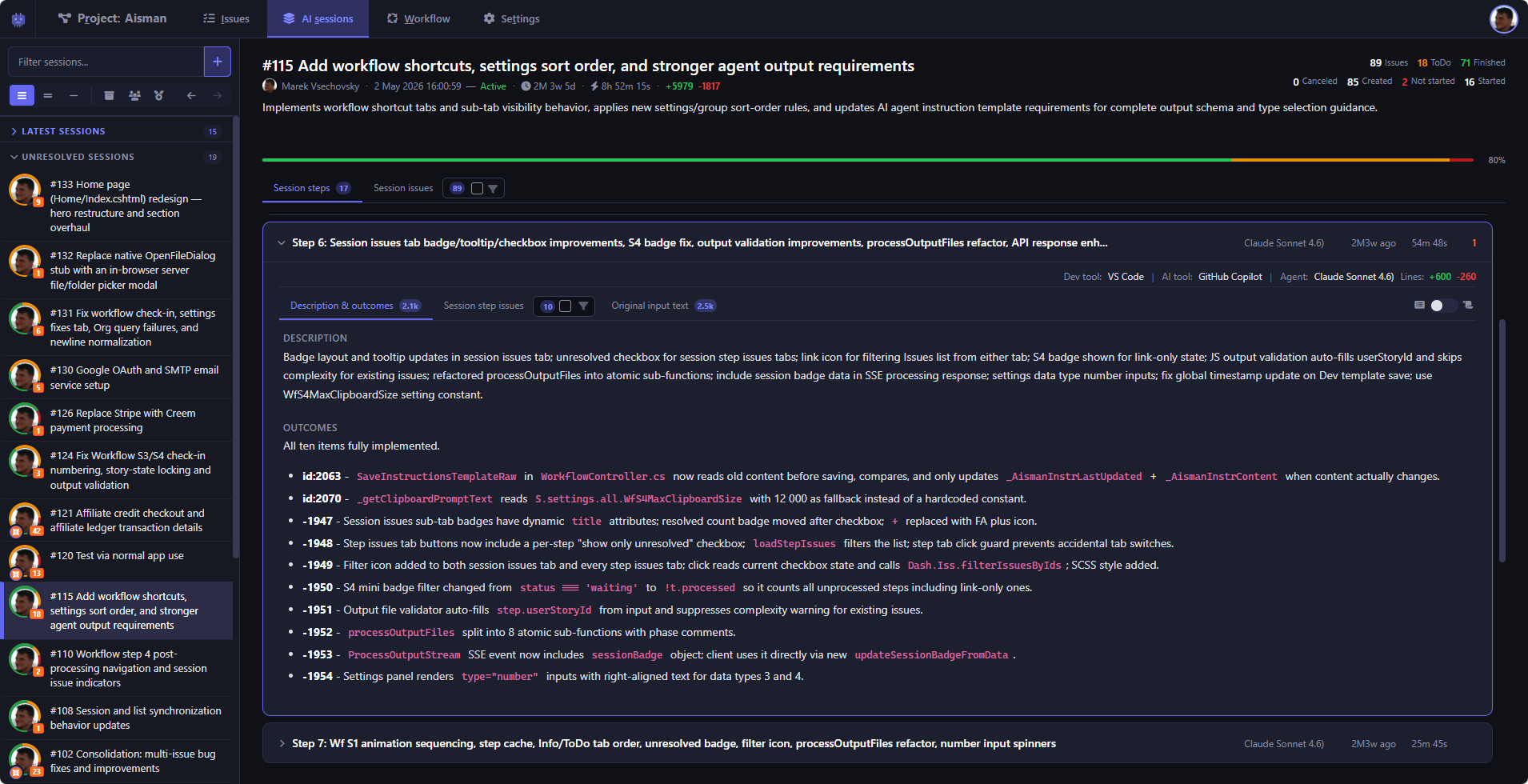
Session step outcomes 2
Another session step showing different outcome patterns and metrics.
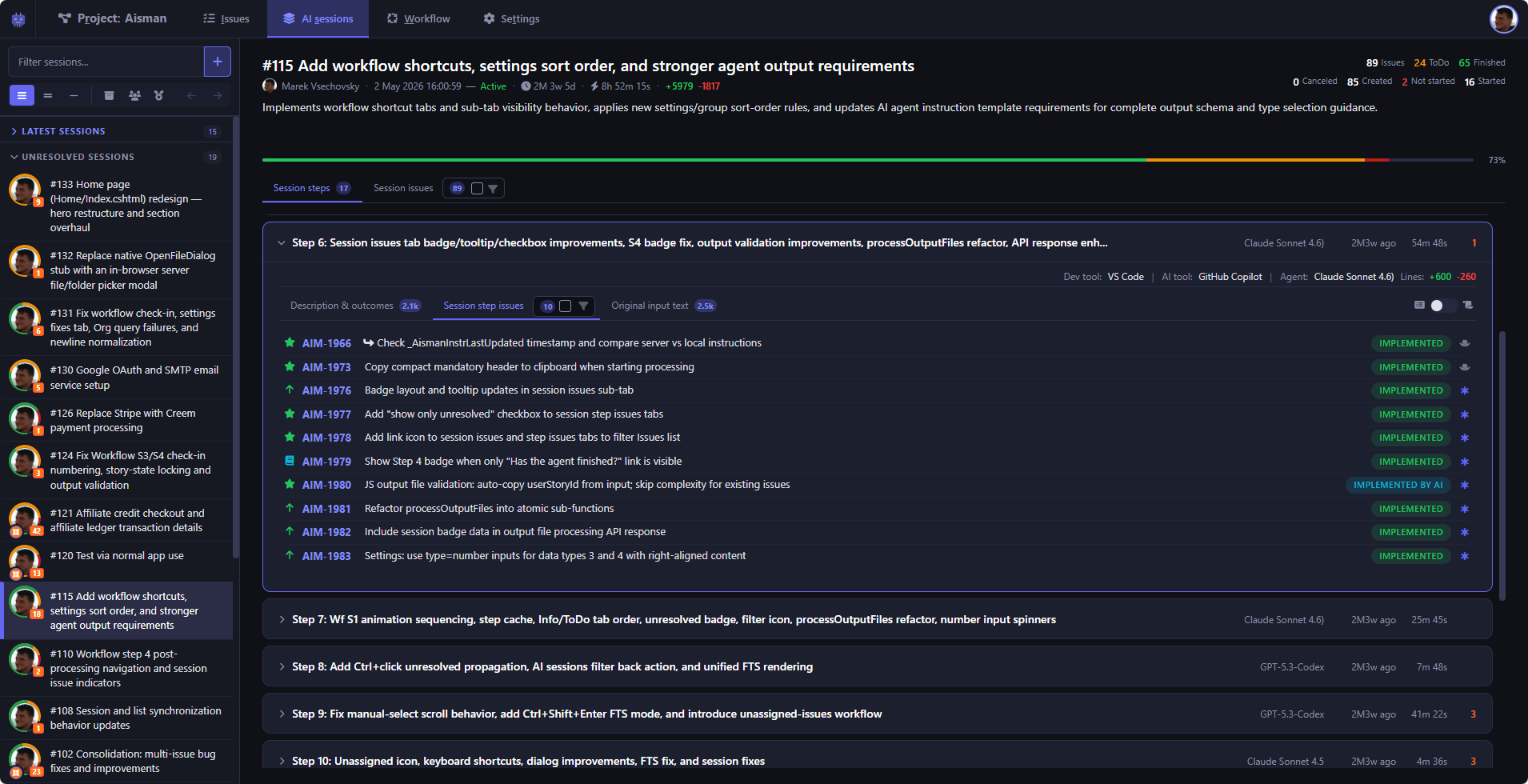
Session step issues
Complete list of all issues touched by a session step, showing their number, title, status, and origin.
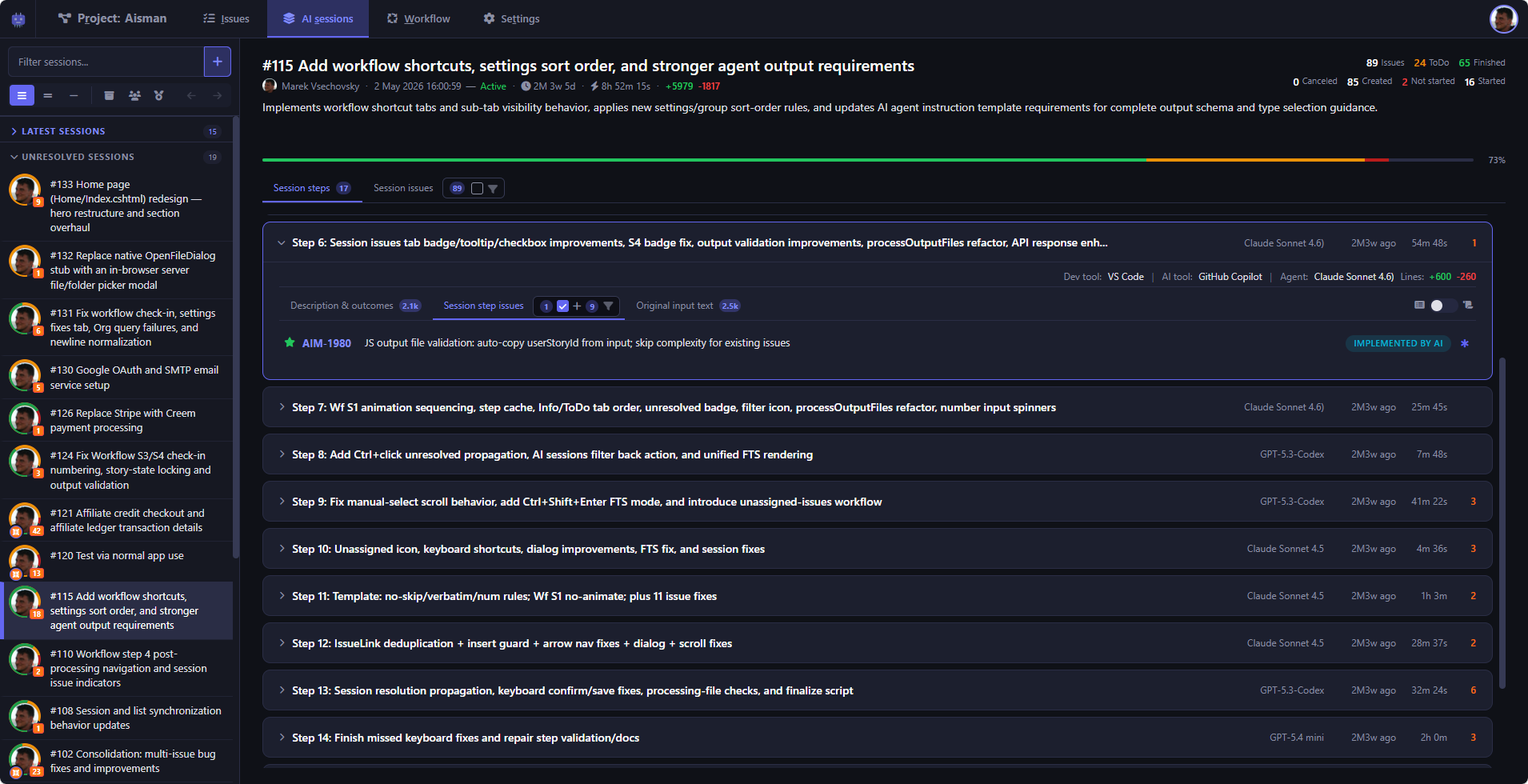
Session step unfinished issues
The session step issue list filtered to only show issues that have not yet been marked as Done.
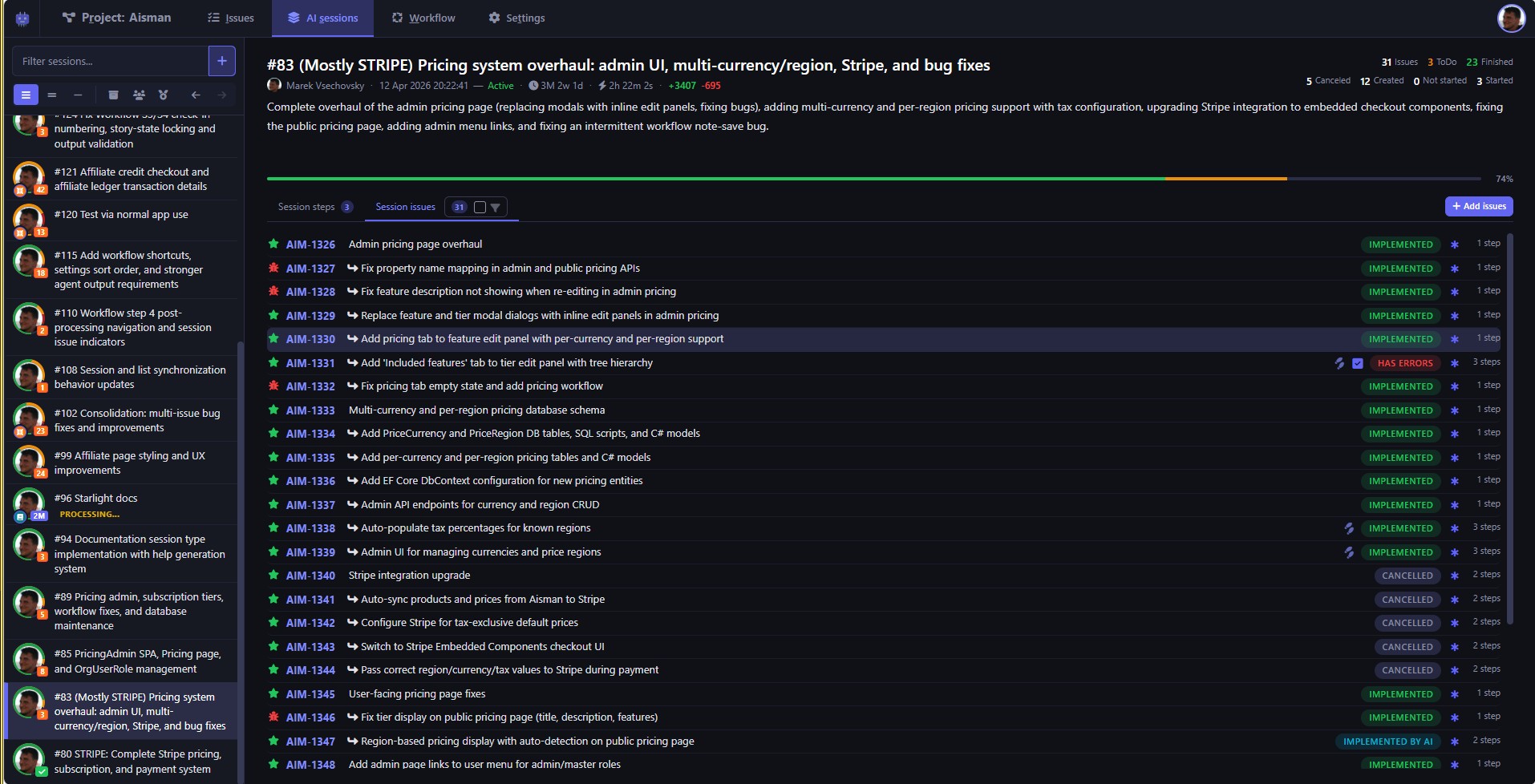
All session issues
Session view showing issues from ALL the session steps and their current states.
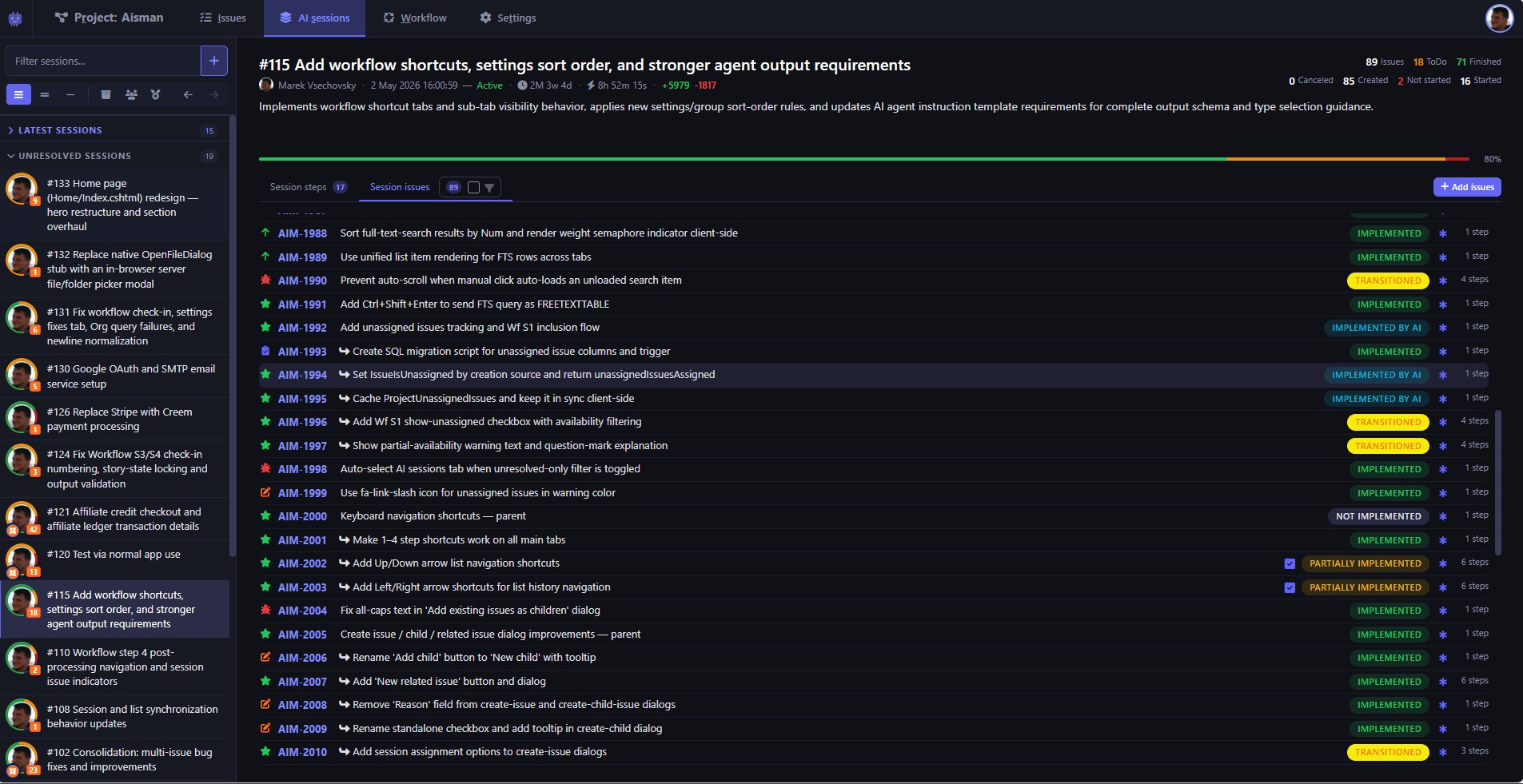
Transitioned and Ready issues
Issues that have been transitioned to consolidation session(s) alongside newly ready issues.
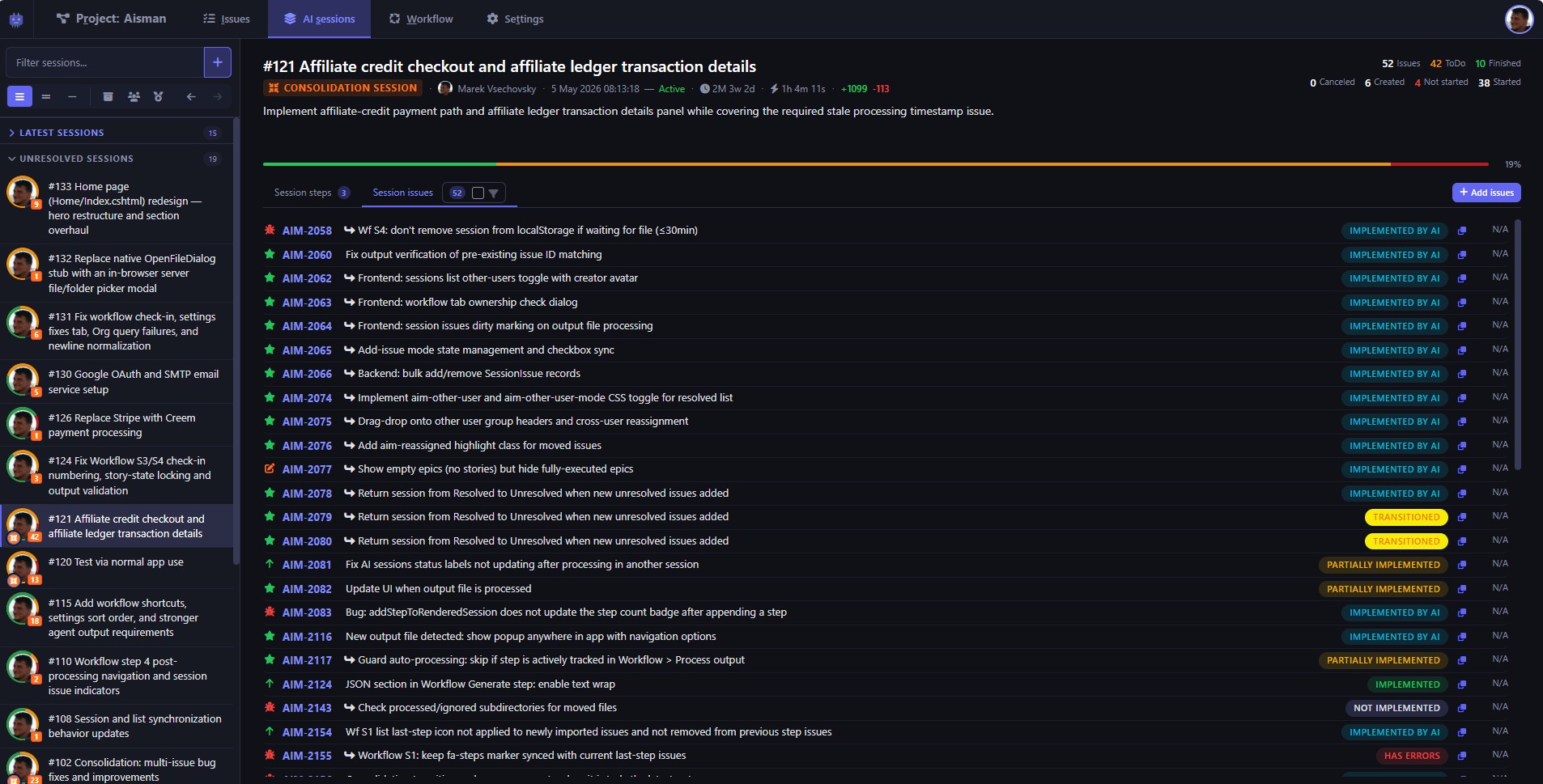
Consolidation session
Issues that were moved from other sessions, preserving their full history.
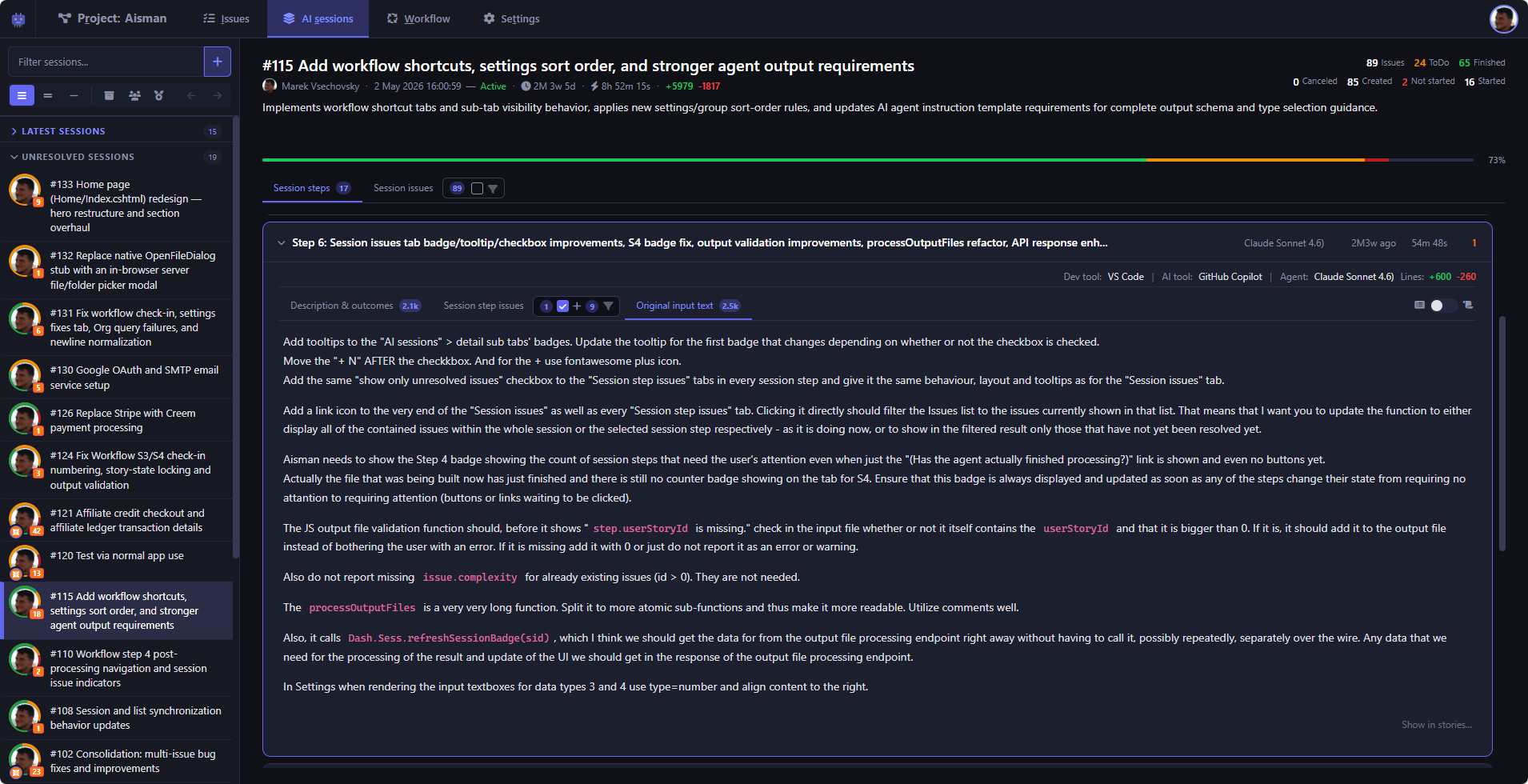
Original input text
The original free-text instructions that were part of the prompt text sent to the AI agent, preserved for reference.
Workflow
Build structured AI prompts from your issue context automatically.
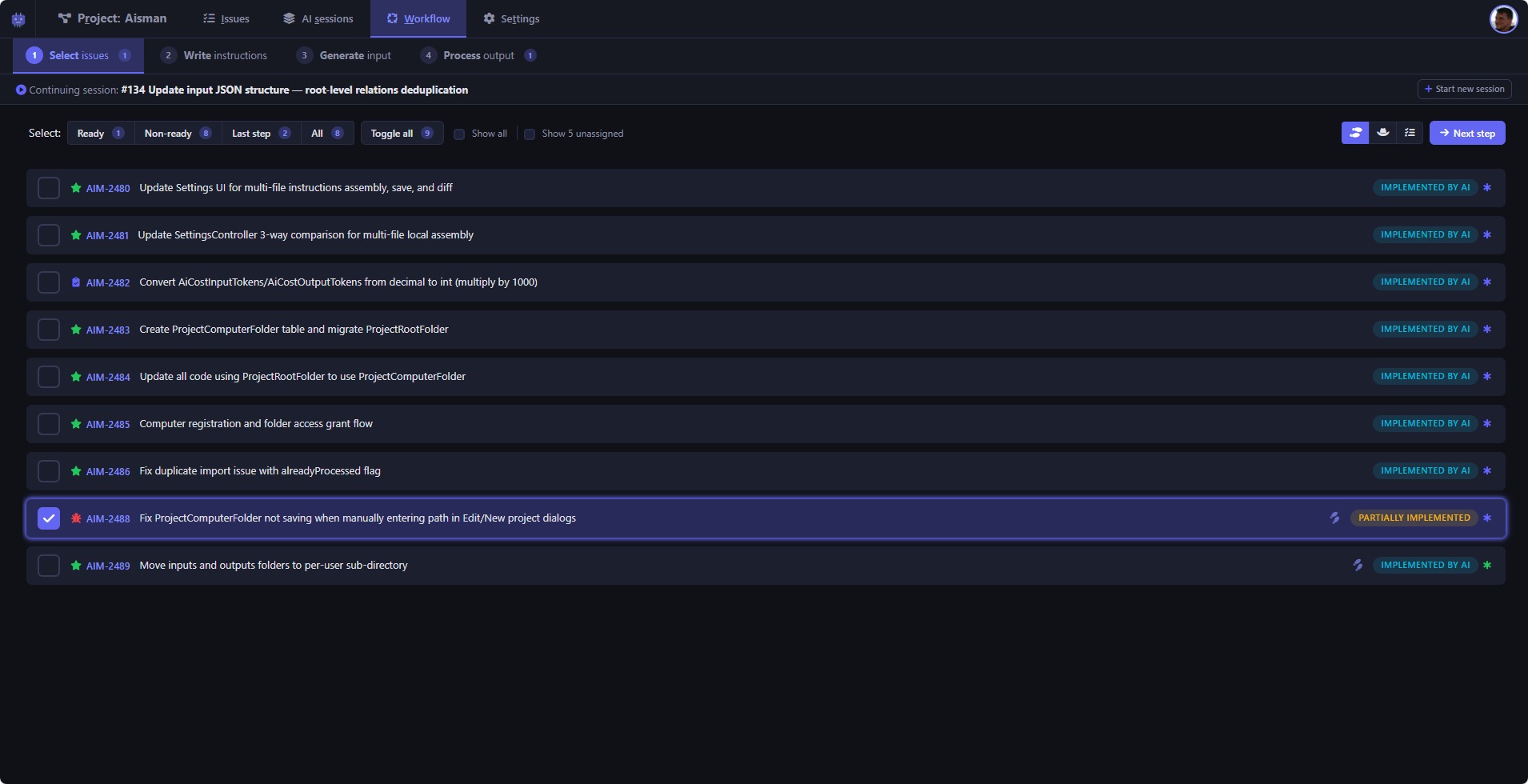
Step 1: List of unresolved session issues
All still unresolves issues in the selected session .Issues from the previous step are highlighted for quick re-selection.
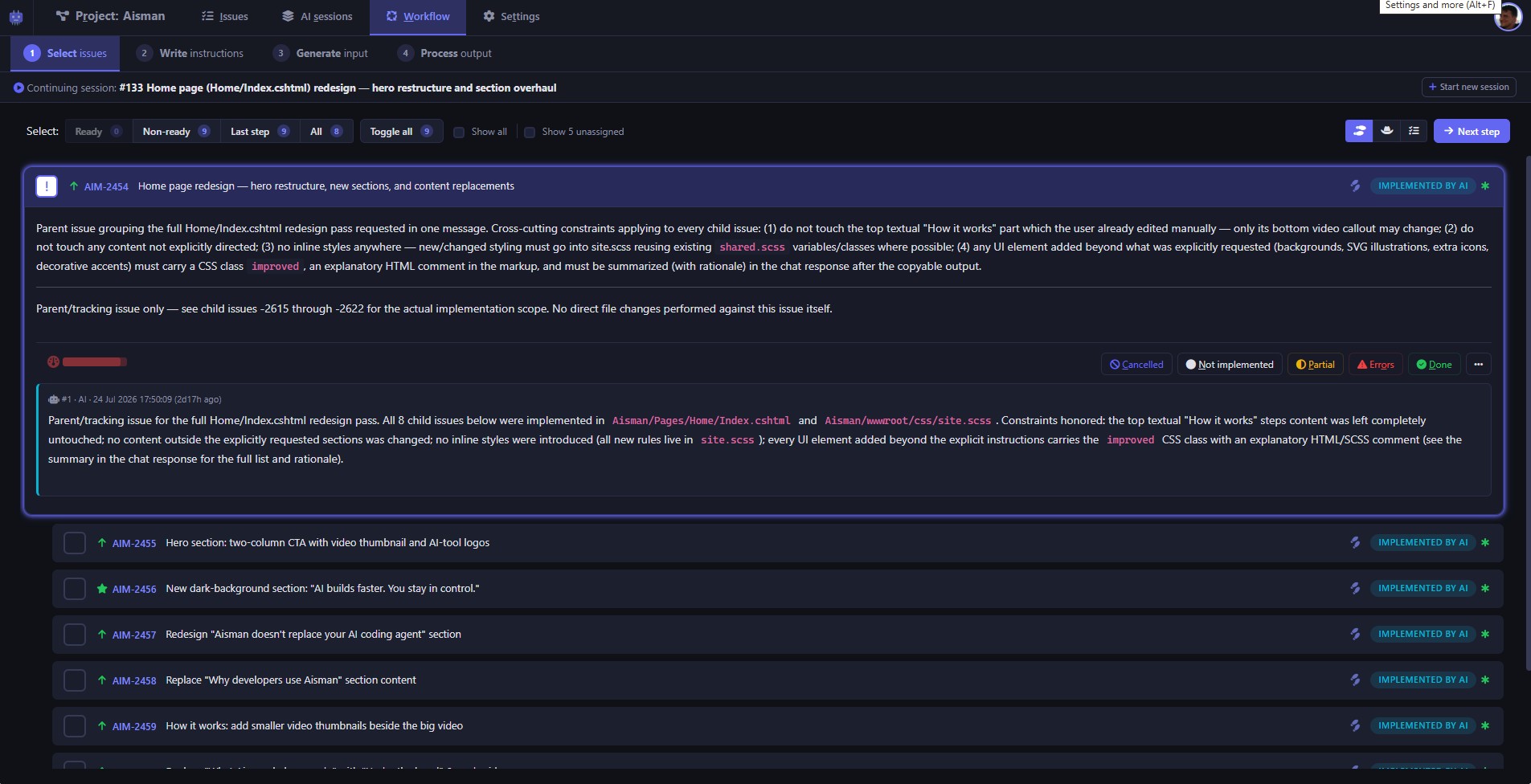
Step 1: Select Issues - parent-child relationships
The selected and expanded issue is a parent of the issues below, which is clearly visible from the intentation hierarchy.
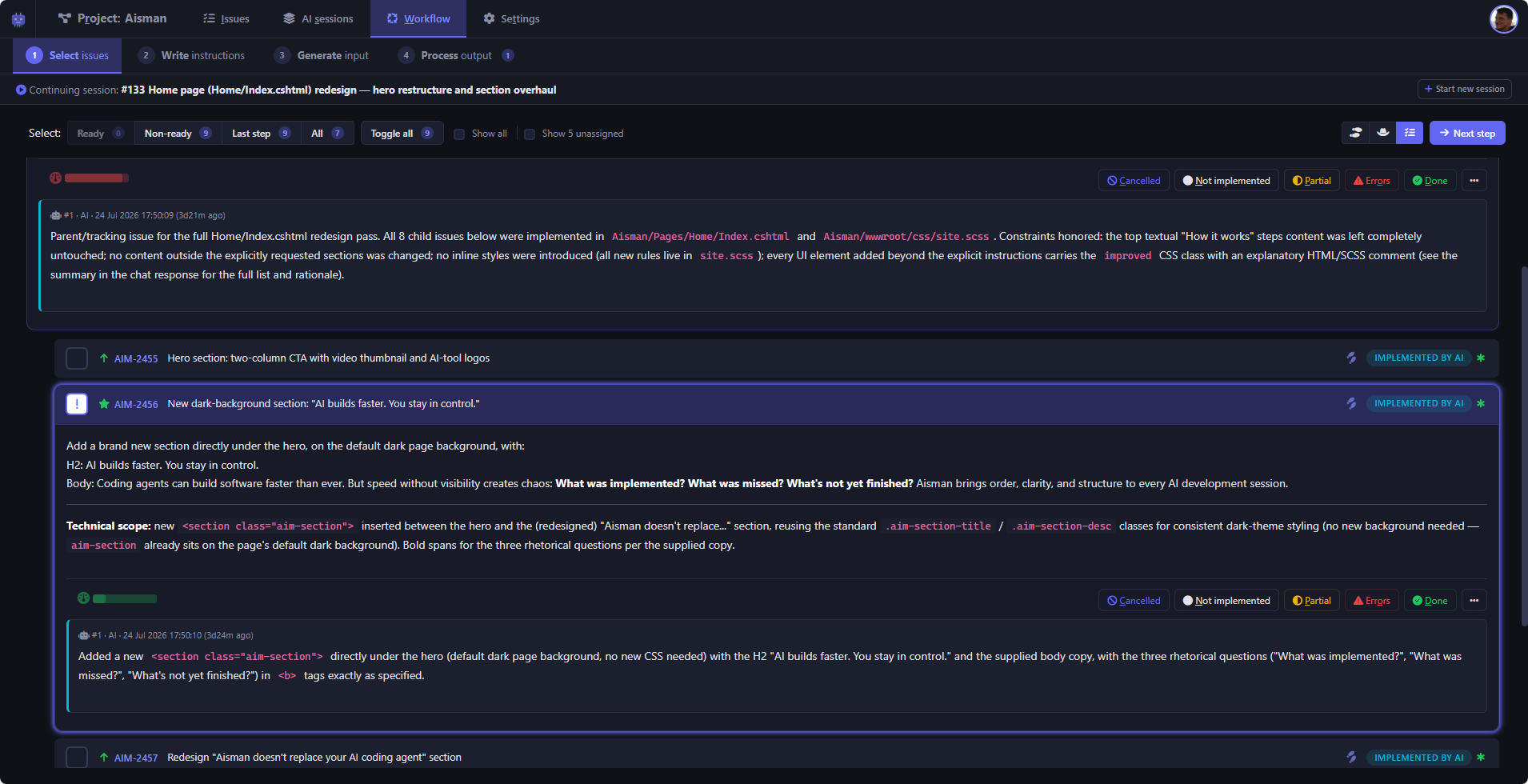
Step 1: Child issue expanded
Child issue expanded below the mostly hidden parent issue in Step 1 of the workflow.
Note the complexity bar (green in this easy issue's case and red for the parent issue)
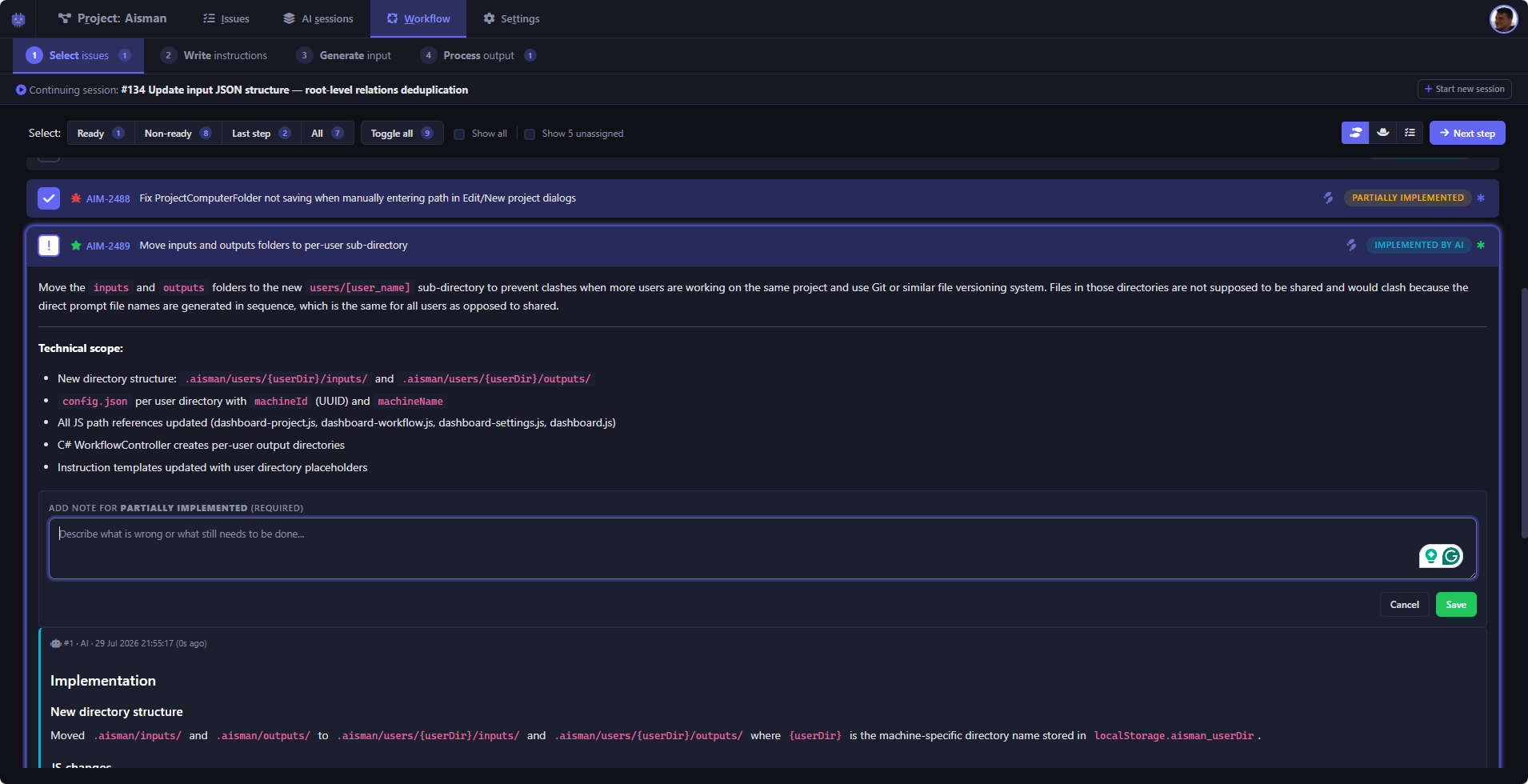
Step 1: Steering an unfinished issue
After processing, if the issue still cannot be considered fully implemented, you can add notes and comments to issues to steer the AI agent in the next step.
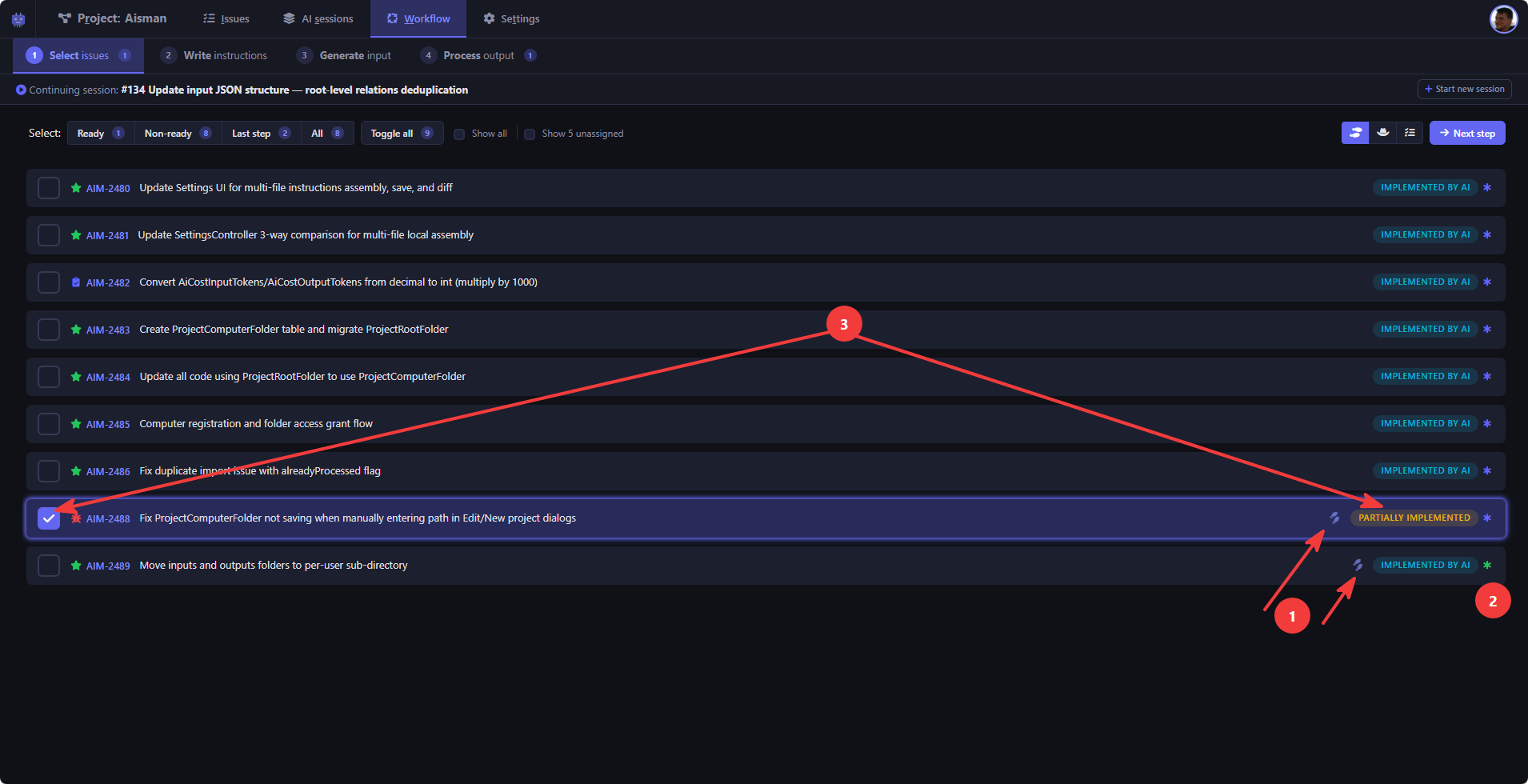
Step 1: New vs. carried-over issues
Shows issue recency and implementation status.
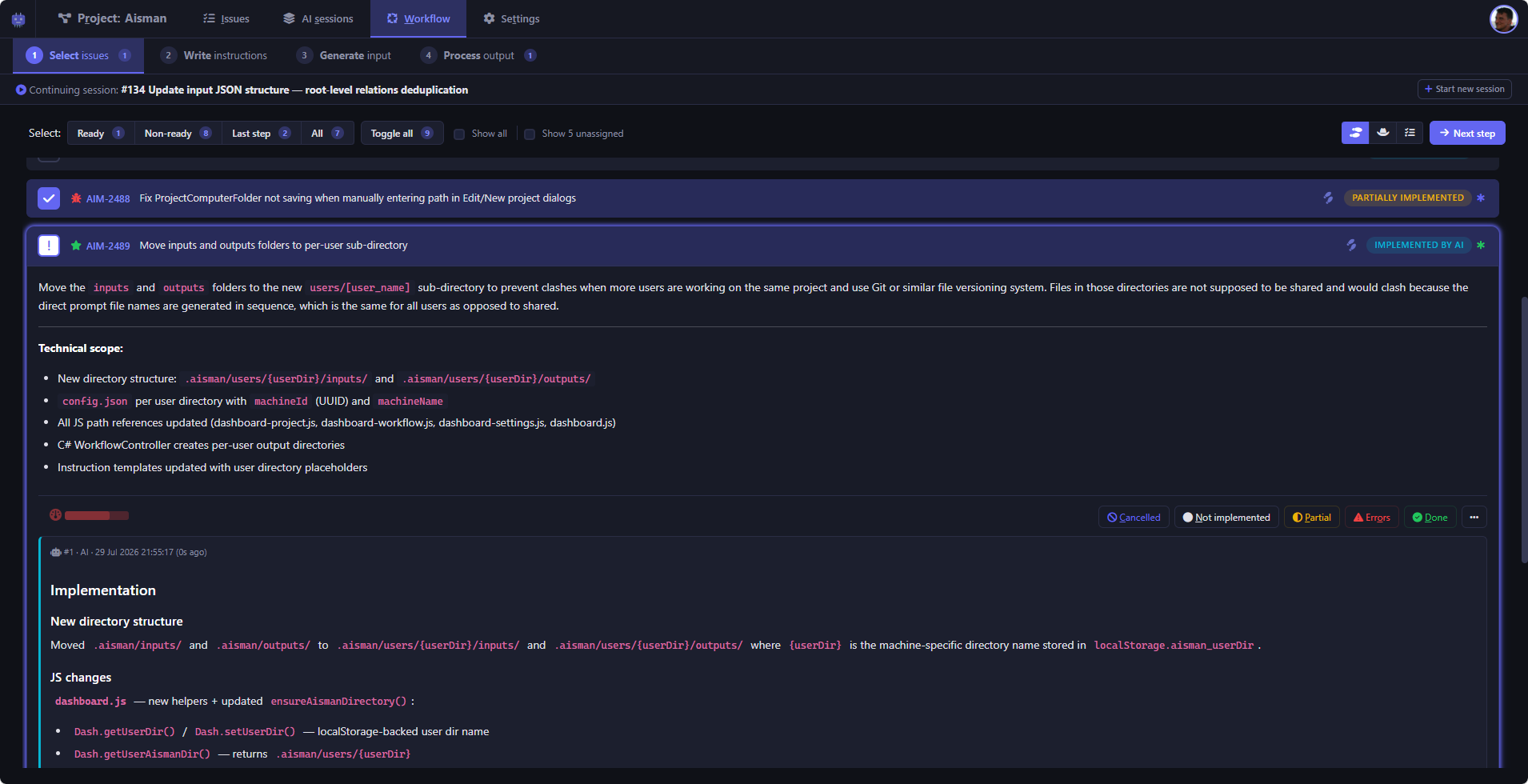
Step 1: Issue rsolution note
After processing, issues show their resolution note to inform the developer what the AI did and what it thinks it accomplished doing so.
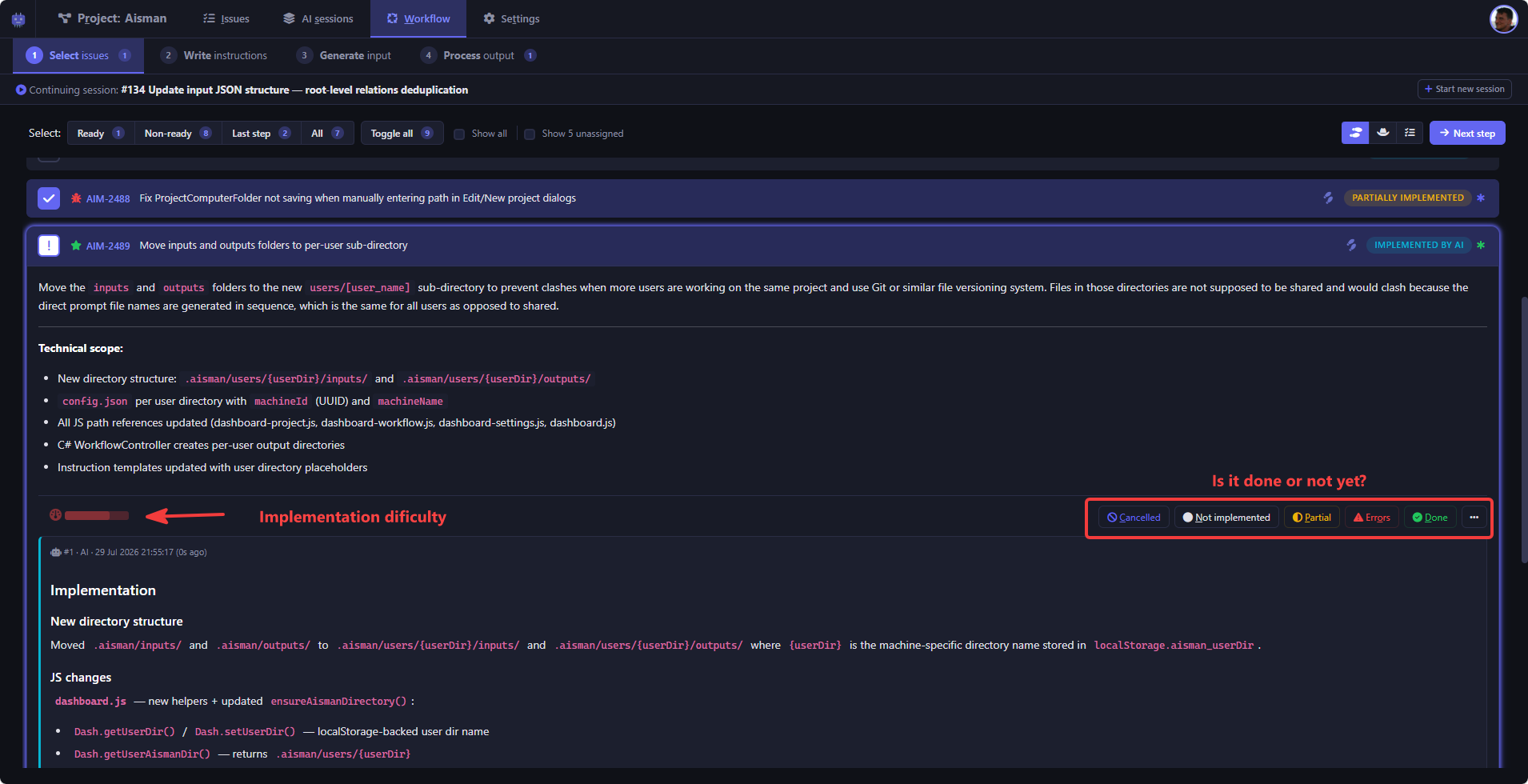
Step 1: Issue complexity and actions
Detailed resolution view including the estimated issue implementation complexity and action buttons to resolve or steer further.
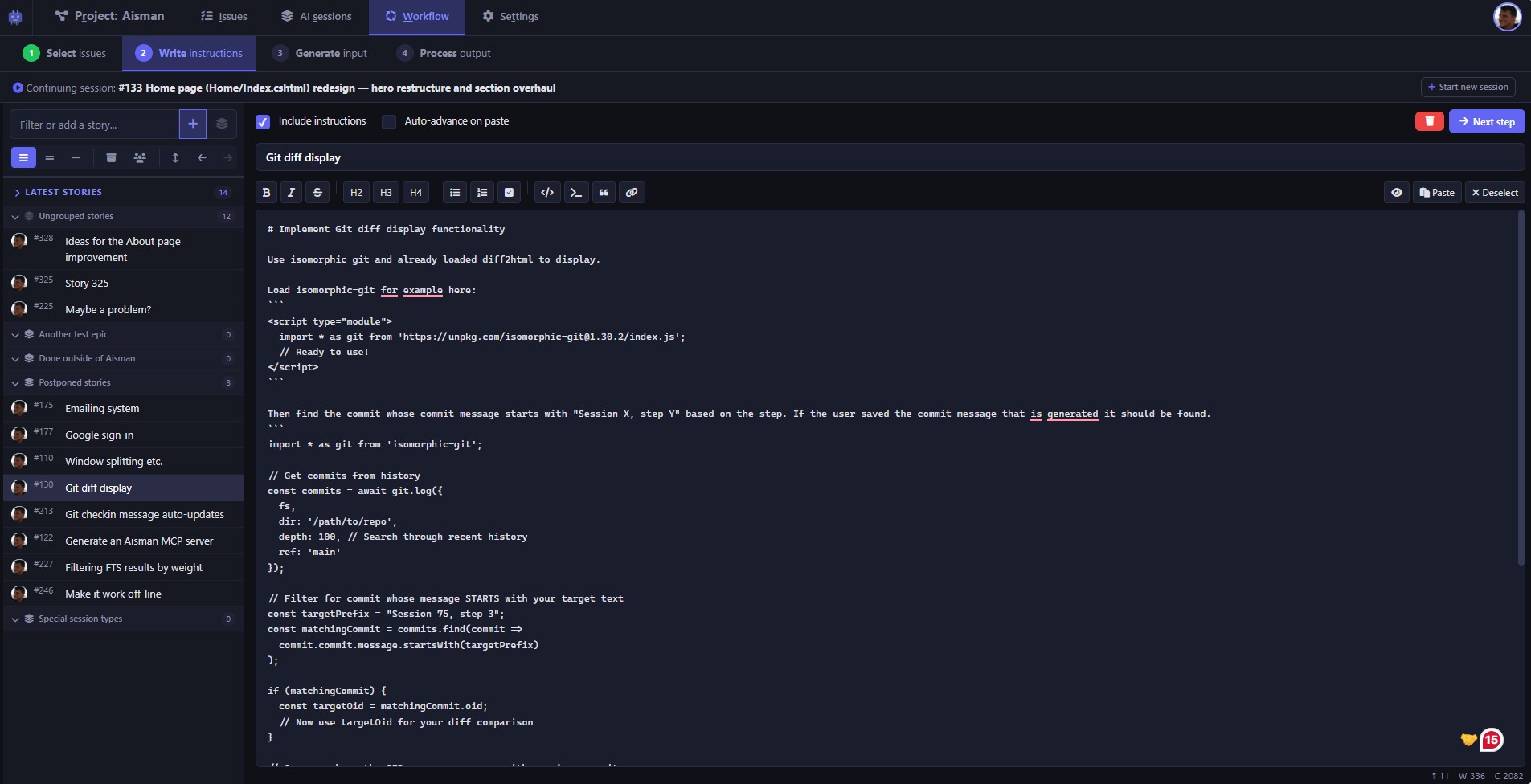
Step 2: Free-text instructions
Here you write your free-text, unstructured instructions that the AI translates into distinct inter-related issues during processing.
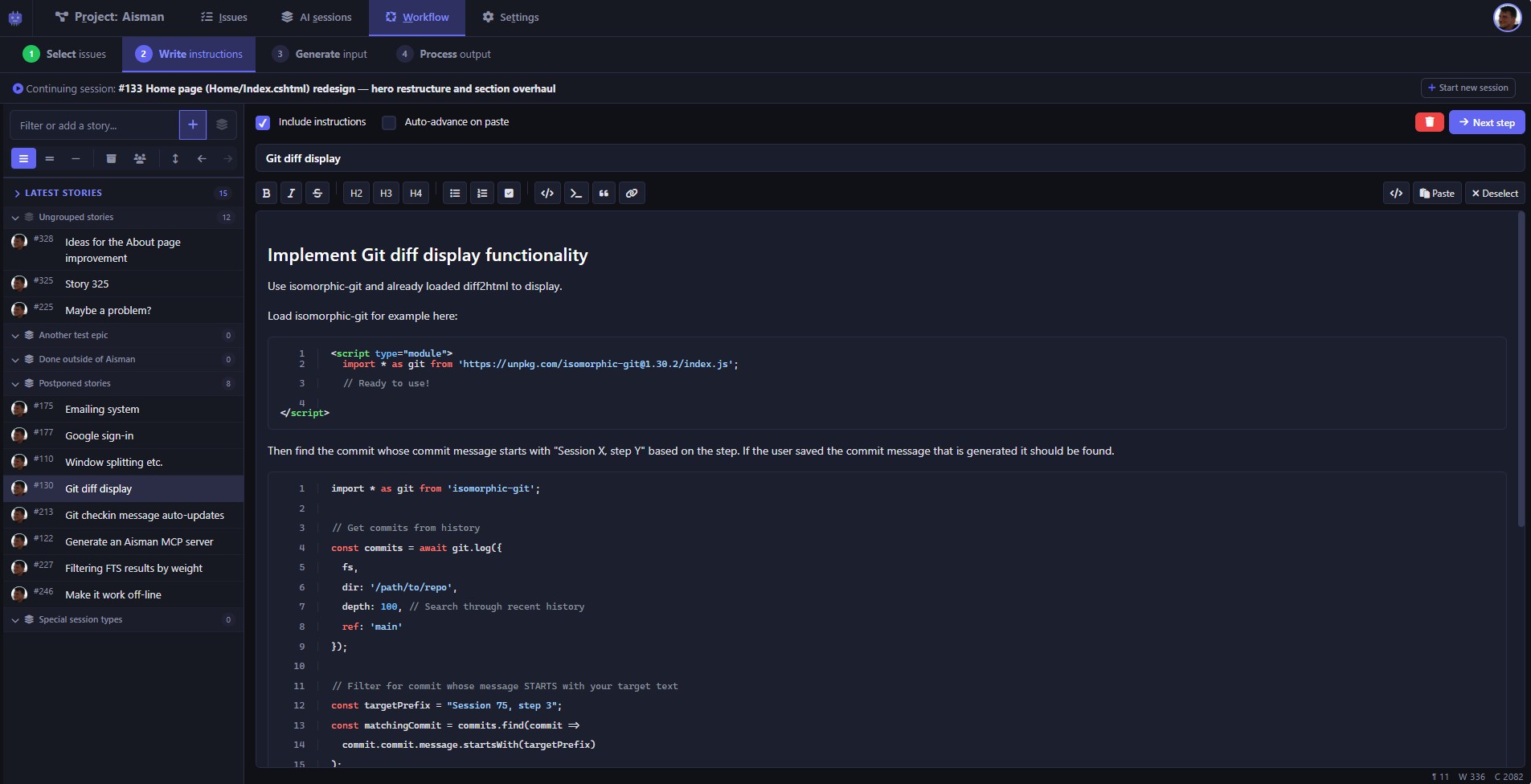
Step 2: Free-text insructions preview
Step 2 of the workflow lets you define fresh new requirements for your software. These are then parsed into distinct issues and implemented by your favourite ai agent.
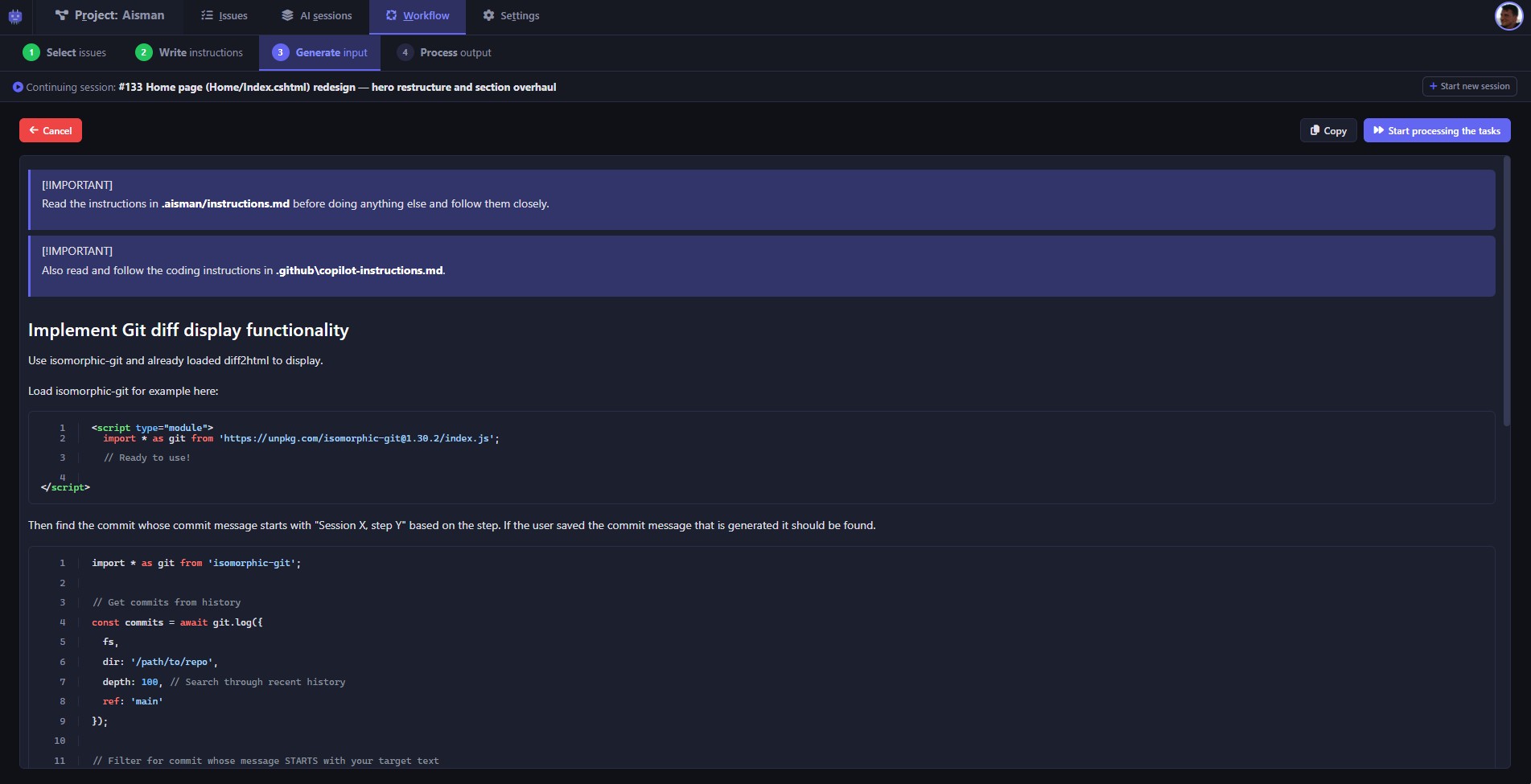
Step 3: Prompt generation
Aisman compiles selected issues, prior notes, related issue details and project instructions into a single, ready-to-paste prompt for your AI coding agent-no manual copy-pasting of scattered context required.
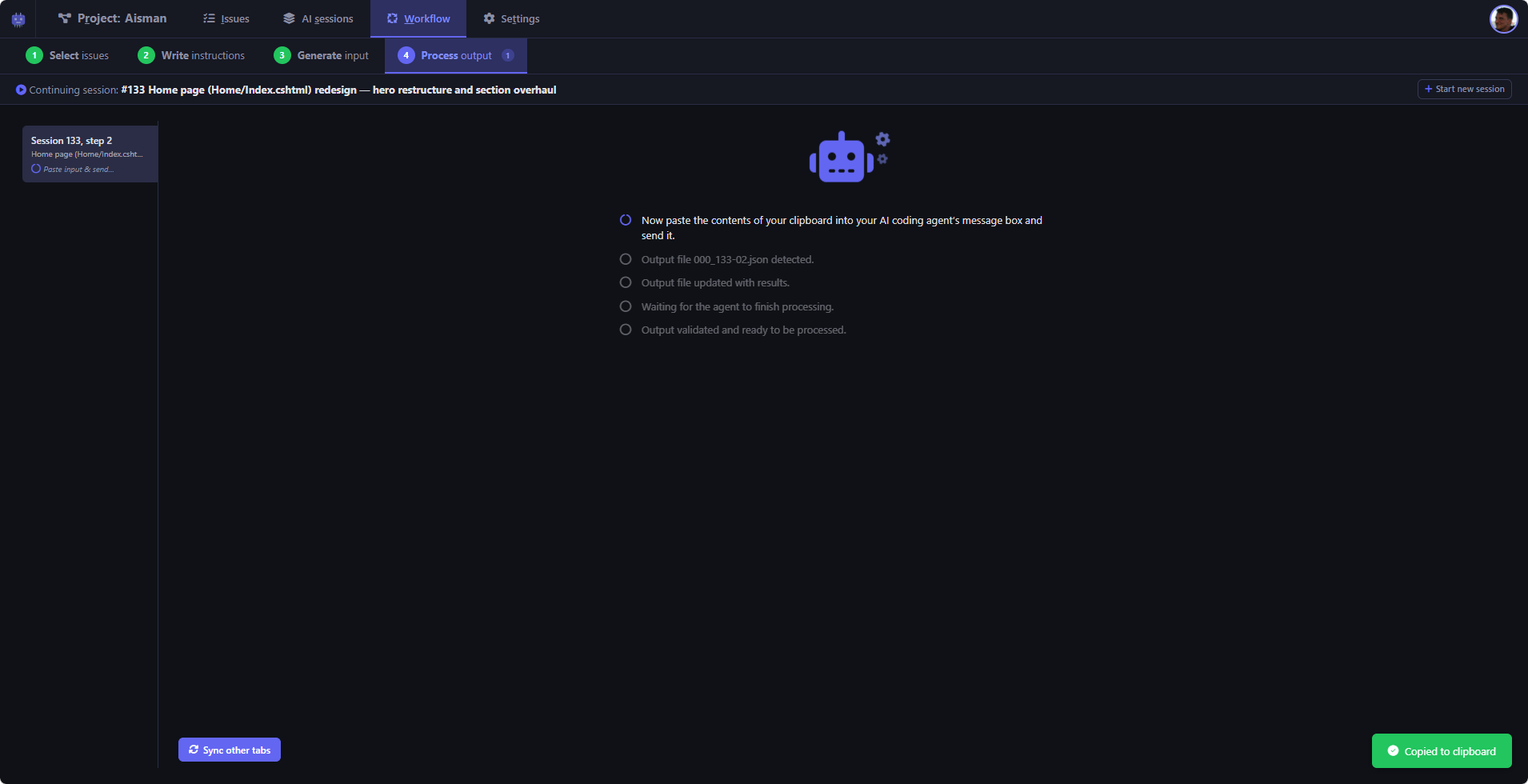
Step 4: Process output
The output processing step where Aisman validates and imports the agent results.
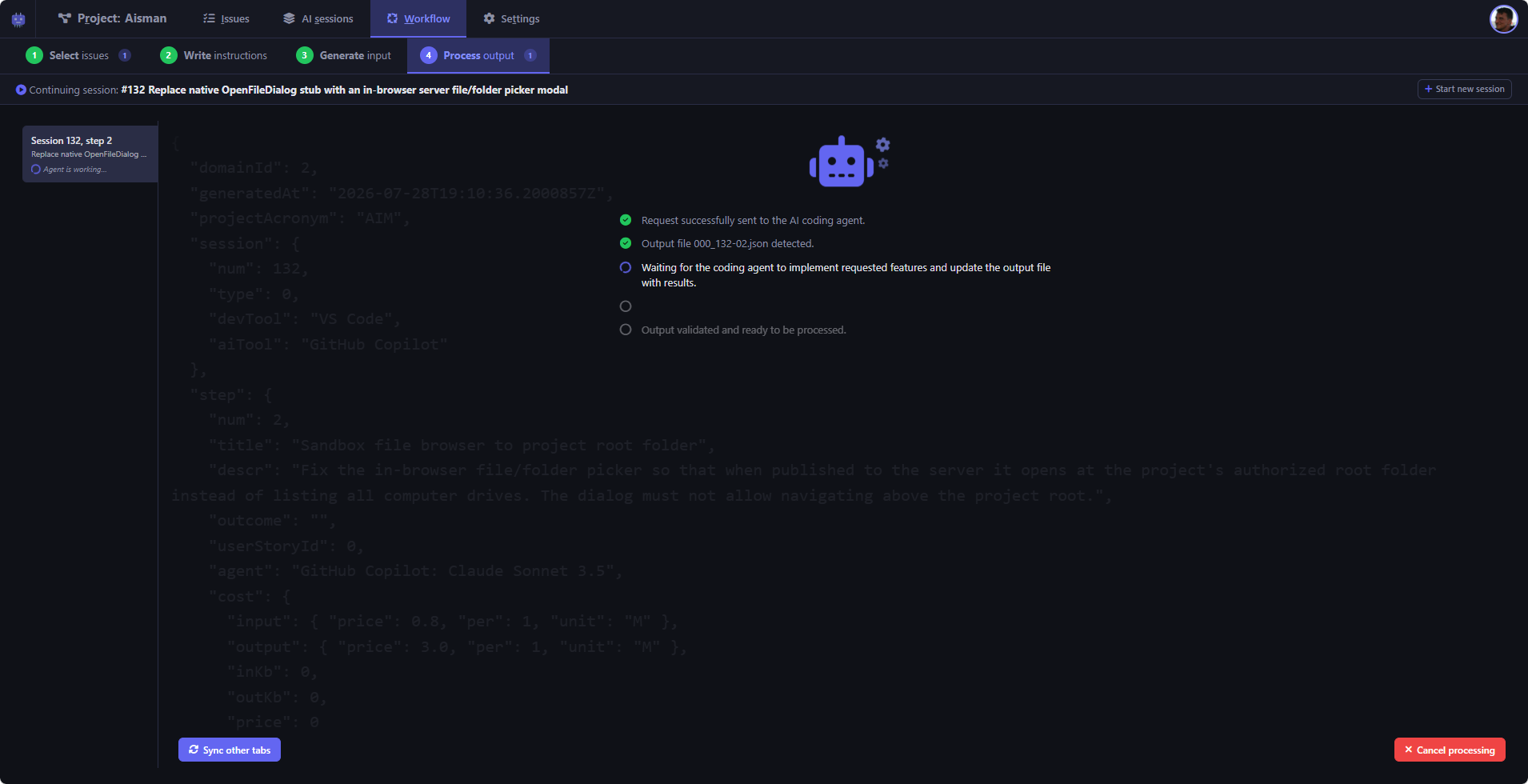
Step 4: Output file created
Confirmation that the output file has been created and issues it contains are being worked on.
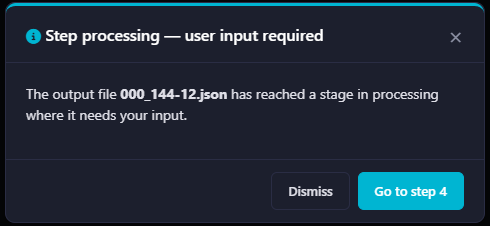
Step processing finished notification
This pop-up notification is shown to you whereever within Aisman dashboard you are. It notifies you that the AI agent has probably finished processing and your action is needed.
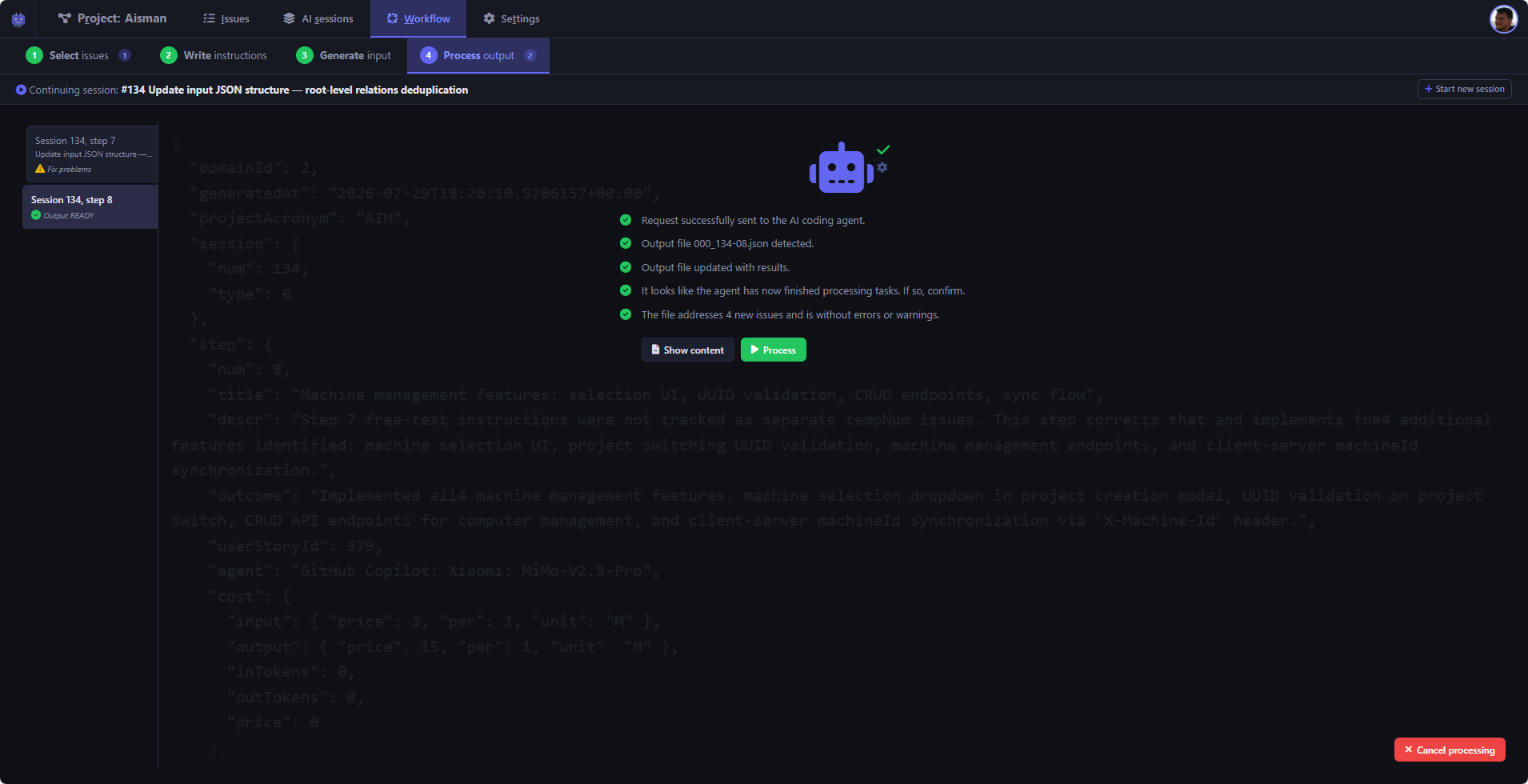
Step 4: Output file ready
In this example, one session step is finished and ready for parsing into Aisman, and another one's output file contains an error or warning that the AI agent may need to fix.
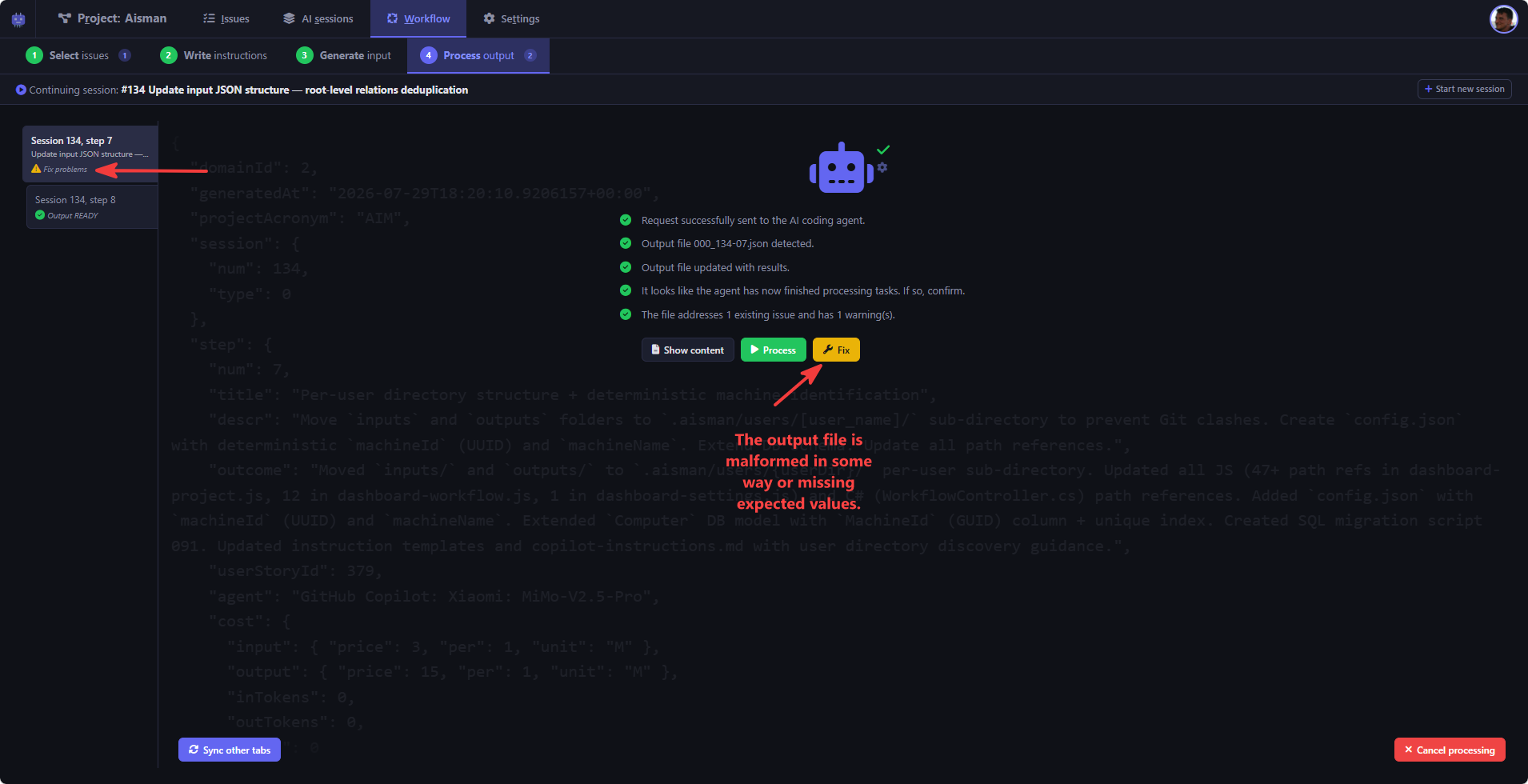
Step 4: An output file need fixing
When an output file fails validation, Aisman tells you about it and offers a button to generate a prompt for the AI agent to fix the file.
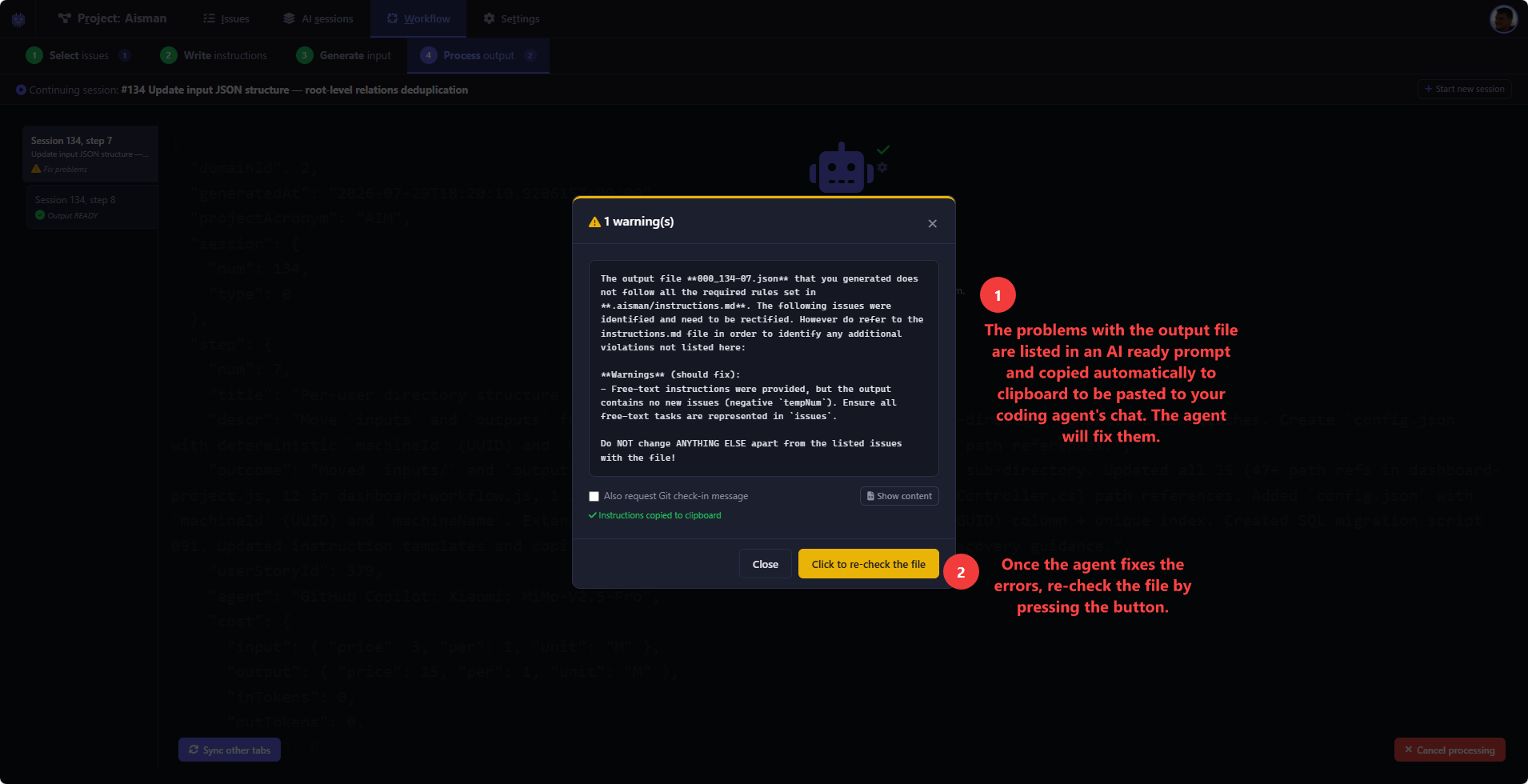
Targeted output file fix prompt
When the AI agent's output file contains errors, Aisman displays and copies a detailed error list to your clipboard automatically so you can see exactly what went wrong and to request a fix easily.
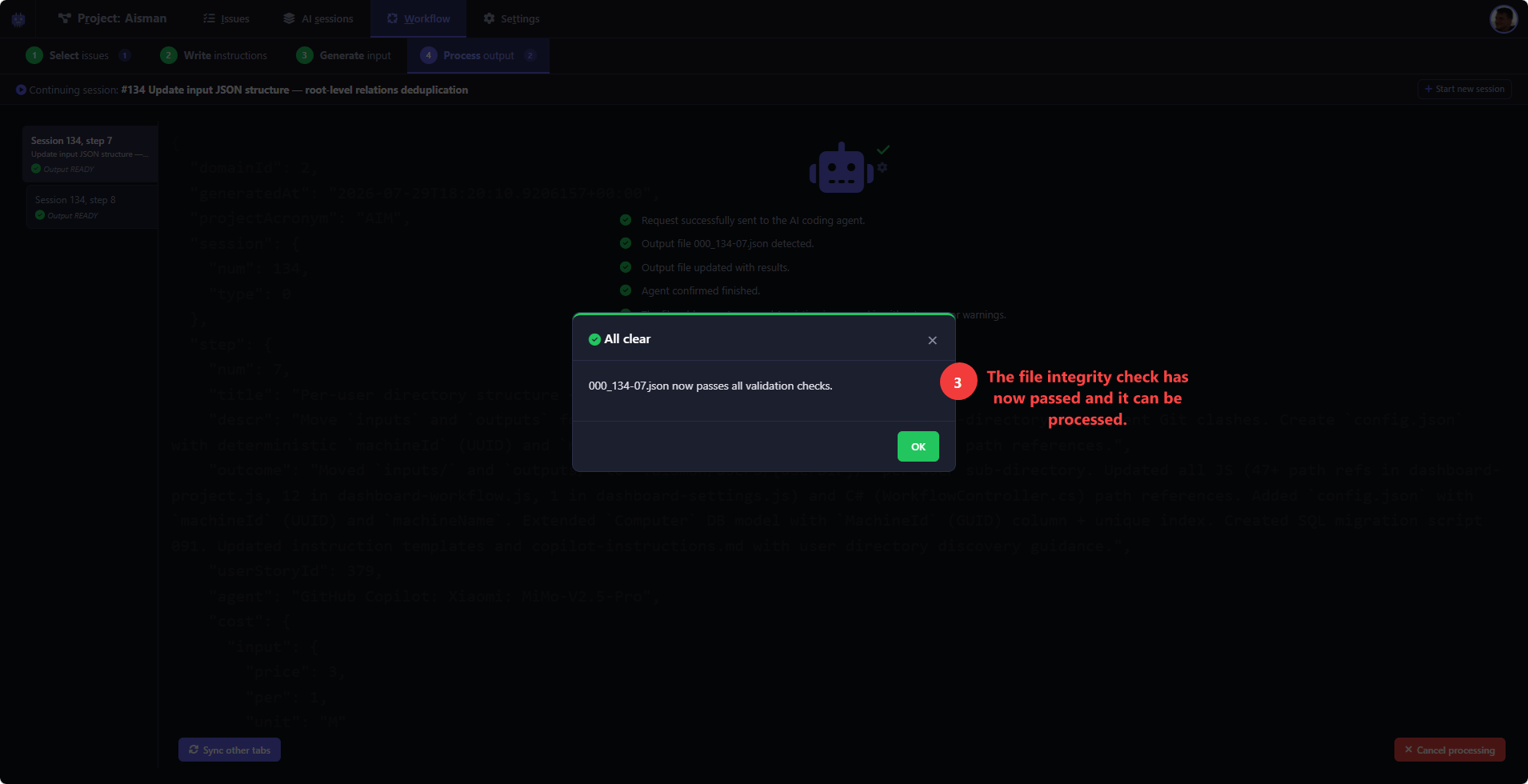
Step 4: Output file rrors fixed
After applying the fix prompt, the output file is re-processed successfully.
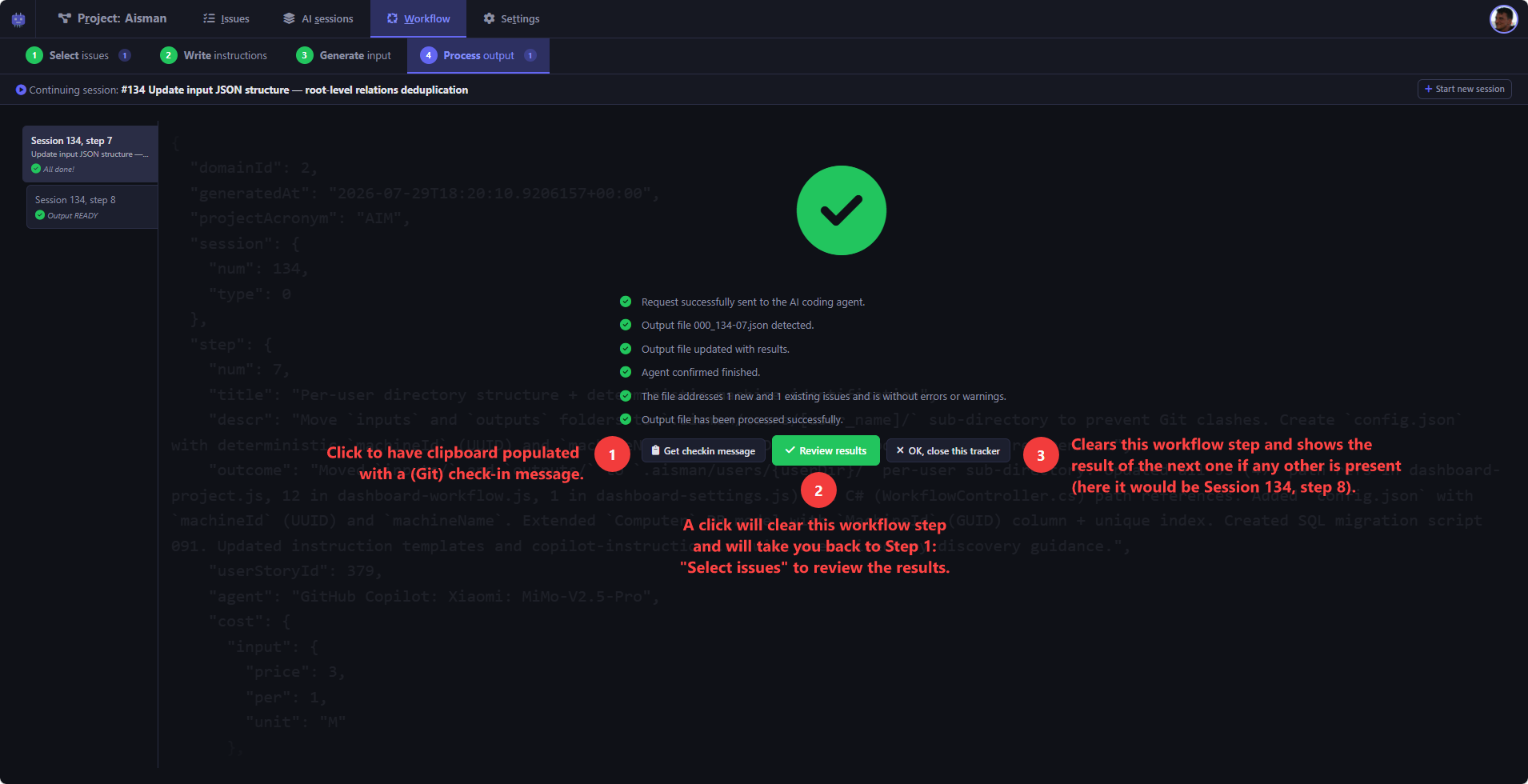
Step 4: AI output processed
Once a valid AI output file is successfully imported into Aisman you are given tools to get a Git checkin message and to view the results of the work, test, confirm and/or steer the next step.
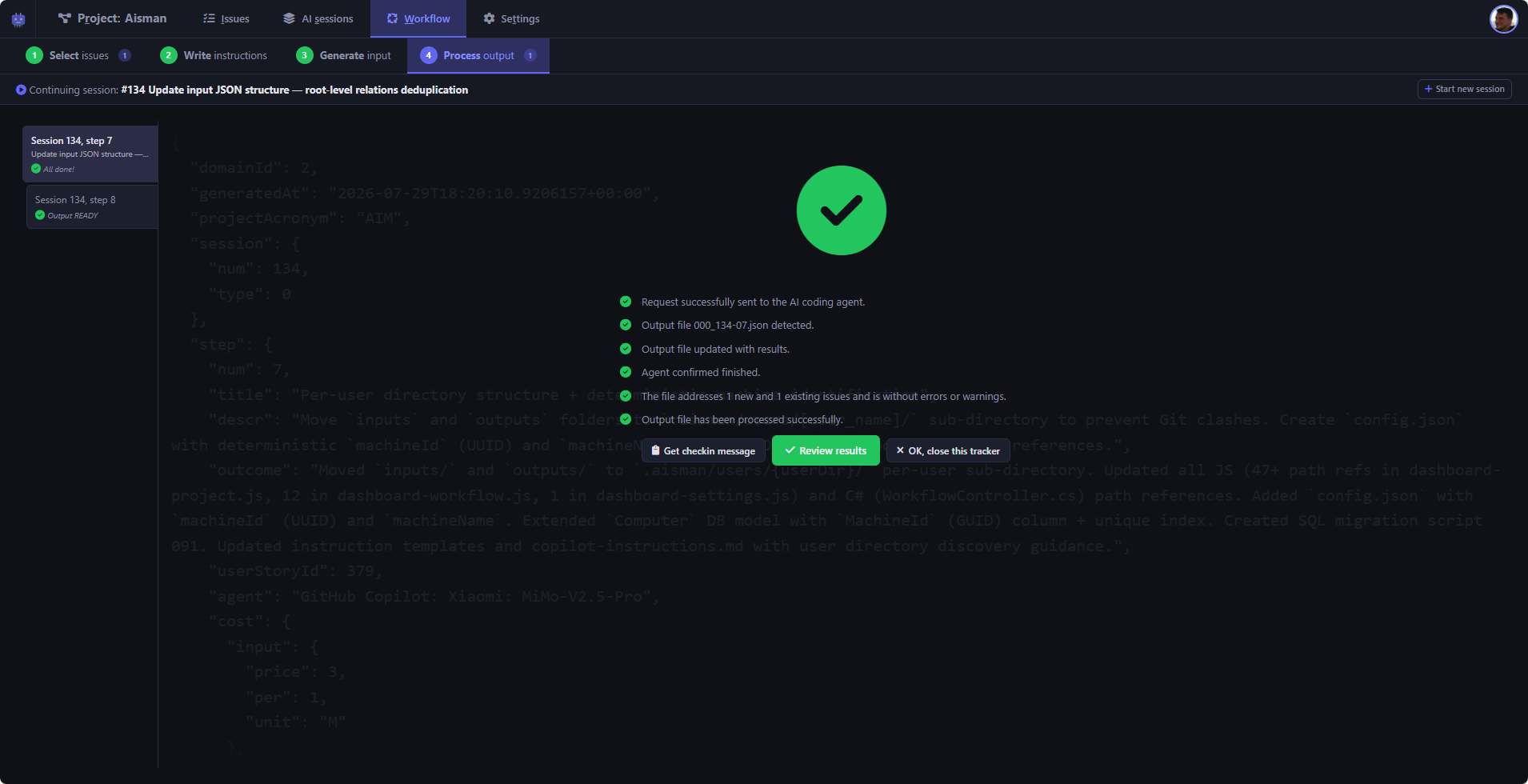
Verification
Before results are accepted, Aisman automatically checks the agent's output file for errors and warnings, confirming the file was processed successfully with no manual review needed.
Settings
Configure workflows, statuses, and integrations for your project.
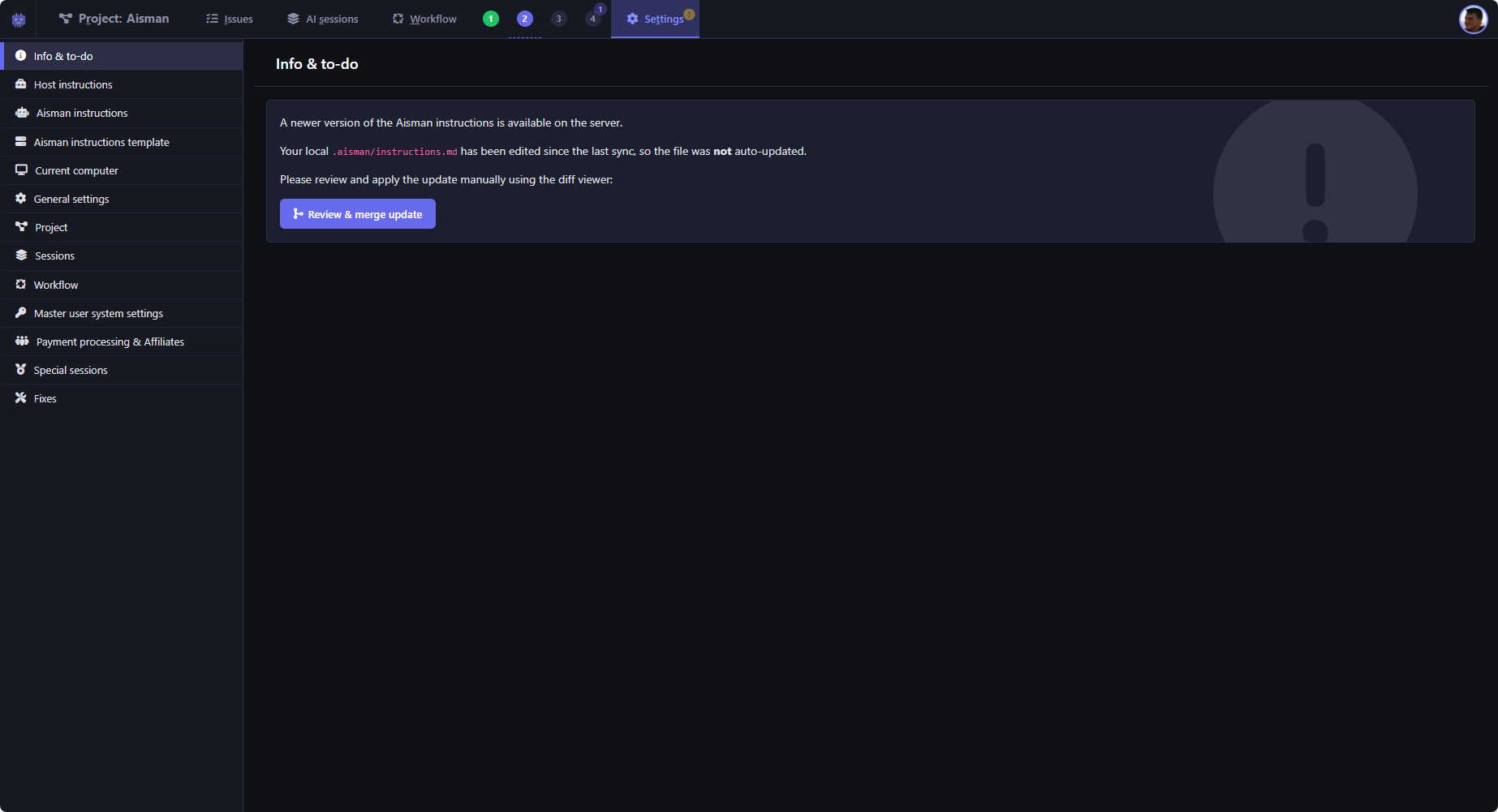
Info and ToDo
The Info tab showing project information and pending to-do items.
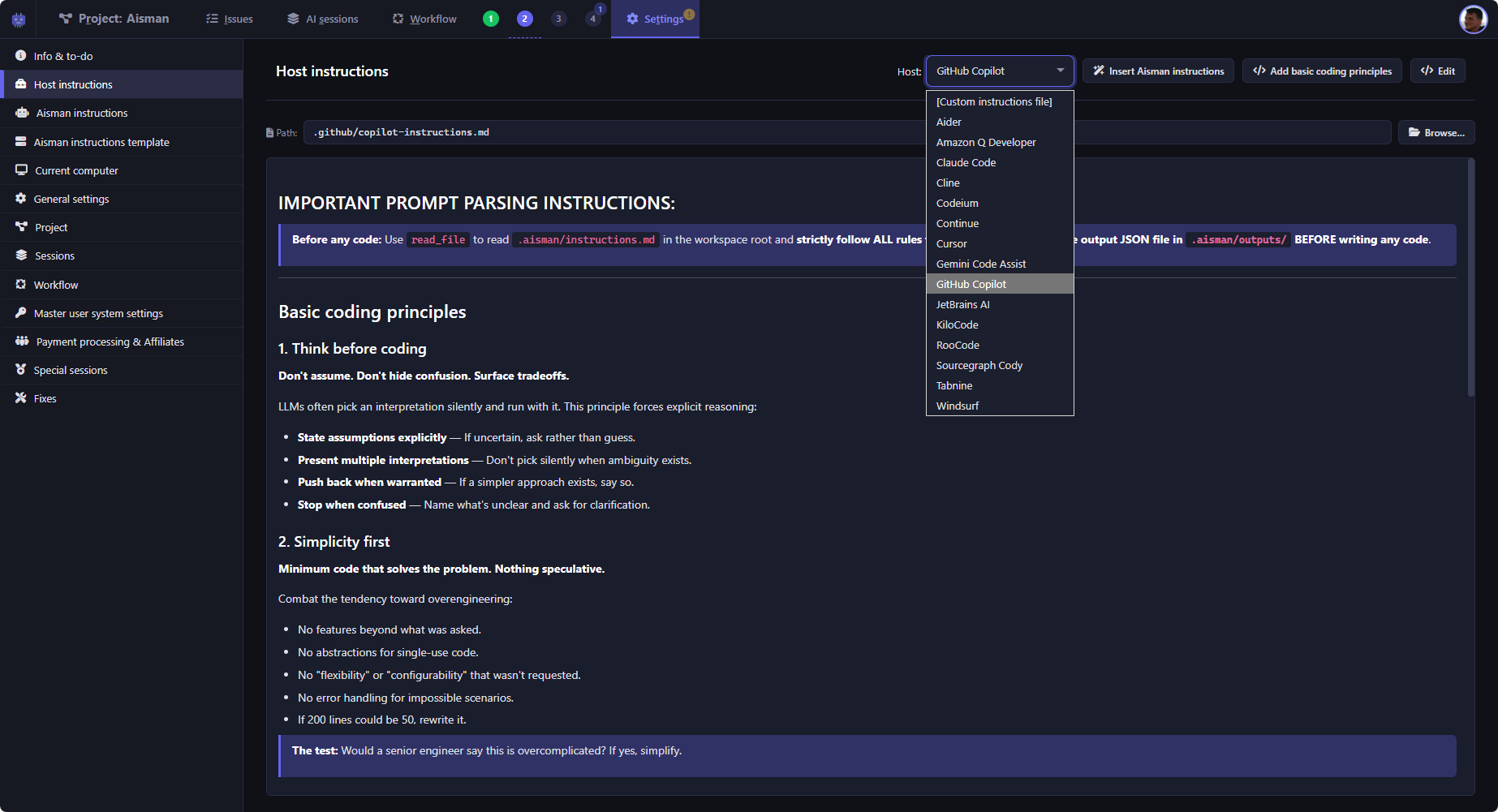
Host instructions
The Host instructions tab shows some o the most common supported AI coding harnesses with their default instruction file paths. It is up to you to set up the ones that you use. Each must contain a reference to the Aisman instructions.
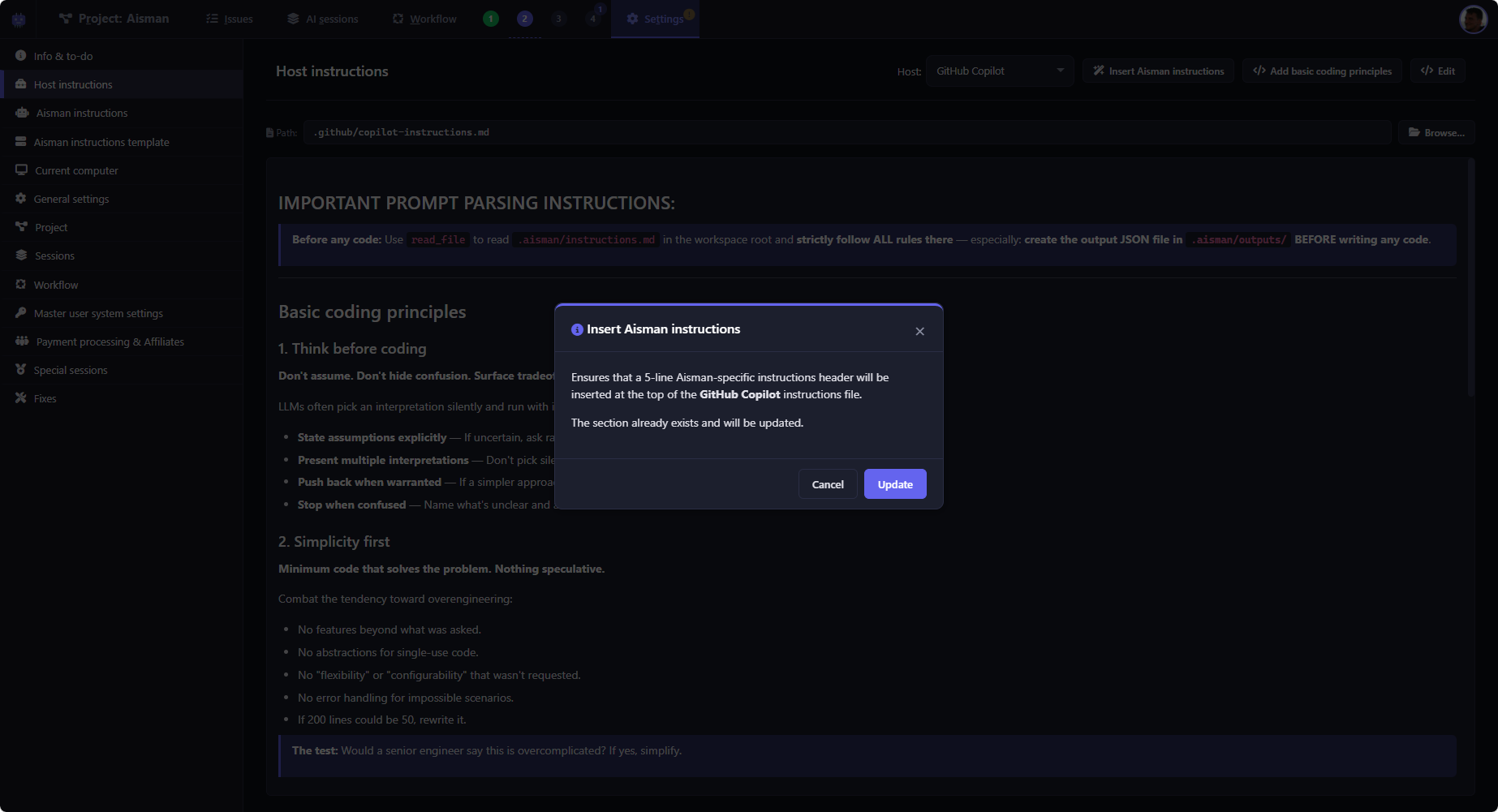
Adding Aisman instructions
One-click insertion of the Aisman instructions header and basic coding principles into your AI agent's instruction file.
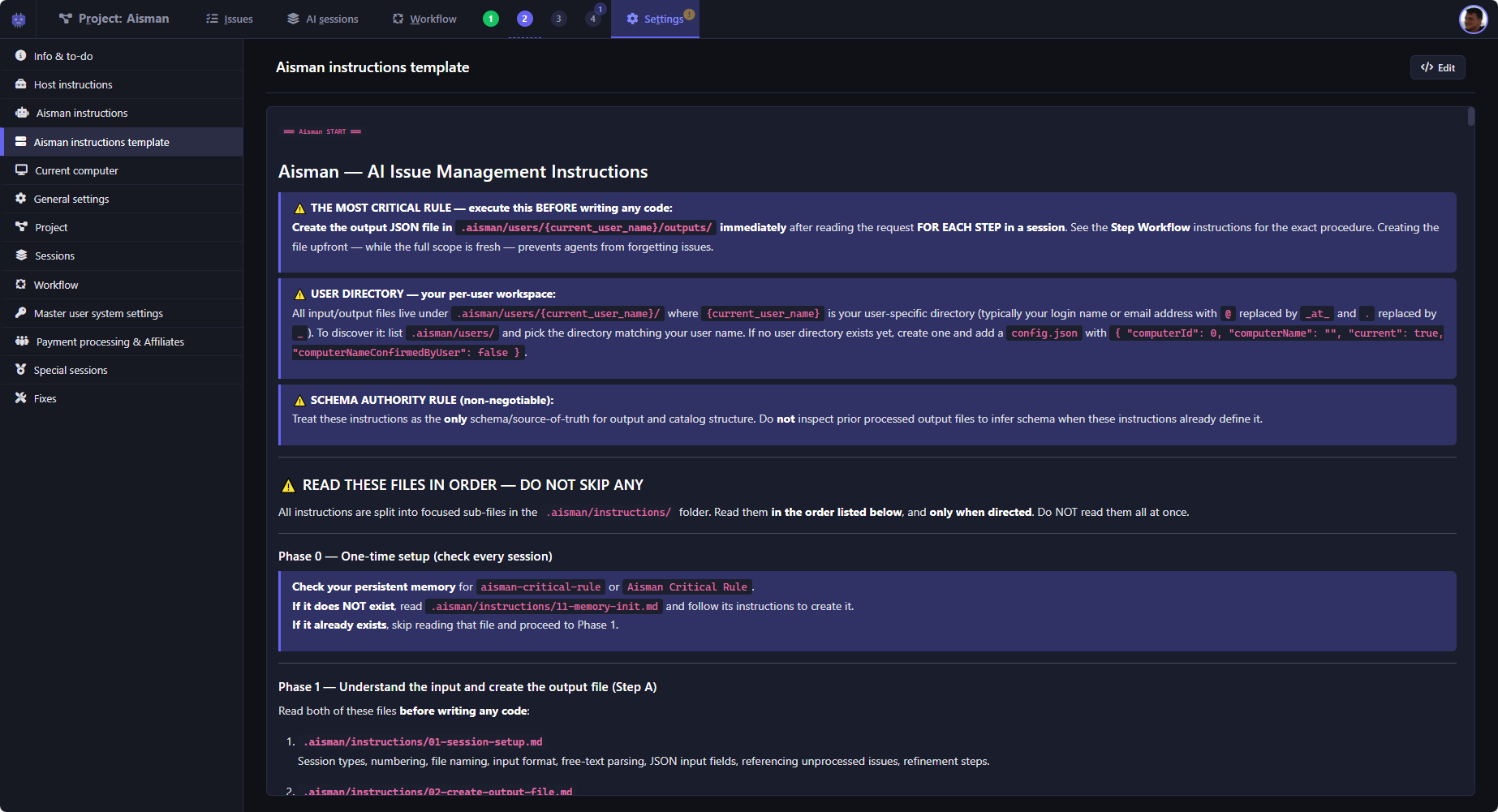
Aisman instructions template
The current latest Aisman instructions template as defined on the server.
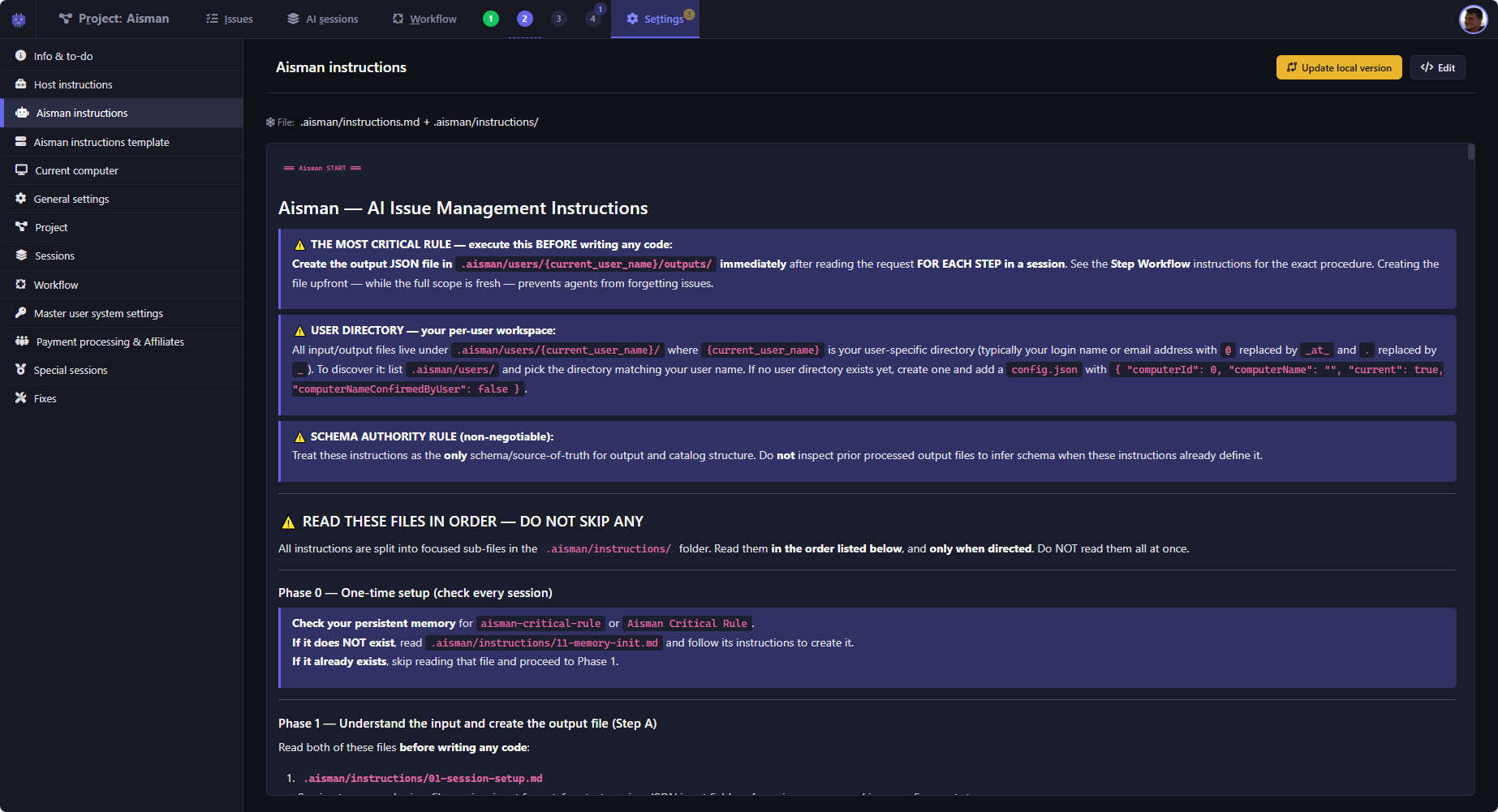
Local Aisman Instructions
The Aisman instructions template that lives in `.aisman/instructions.md` and int the sub-files in the `/instructions` folder.
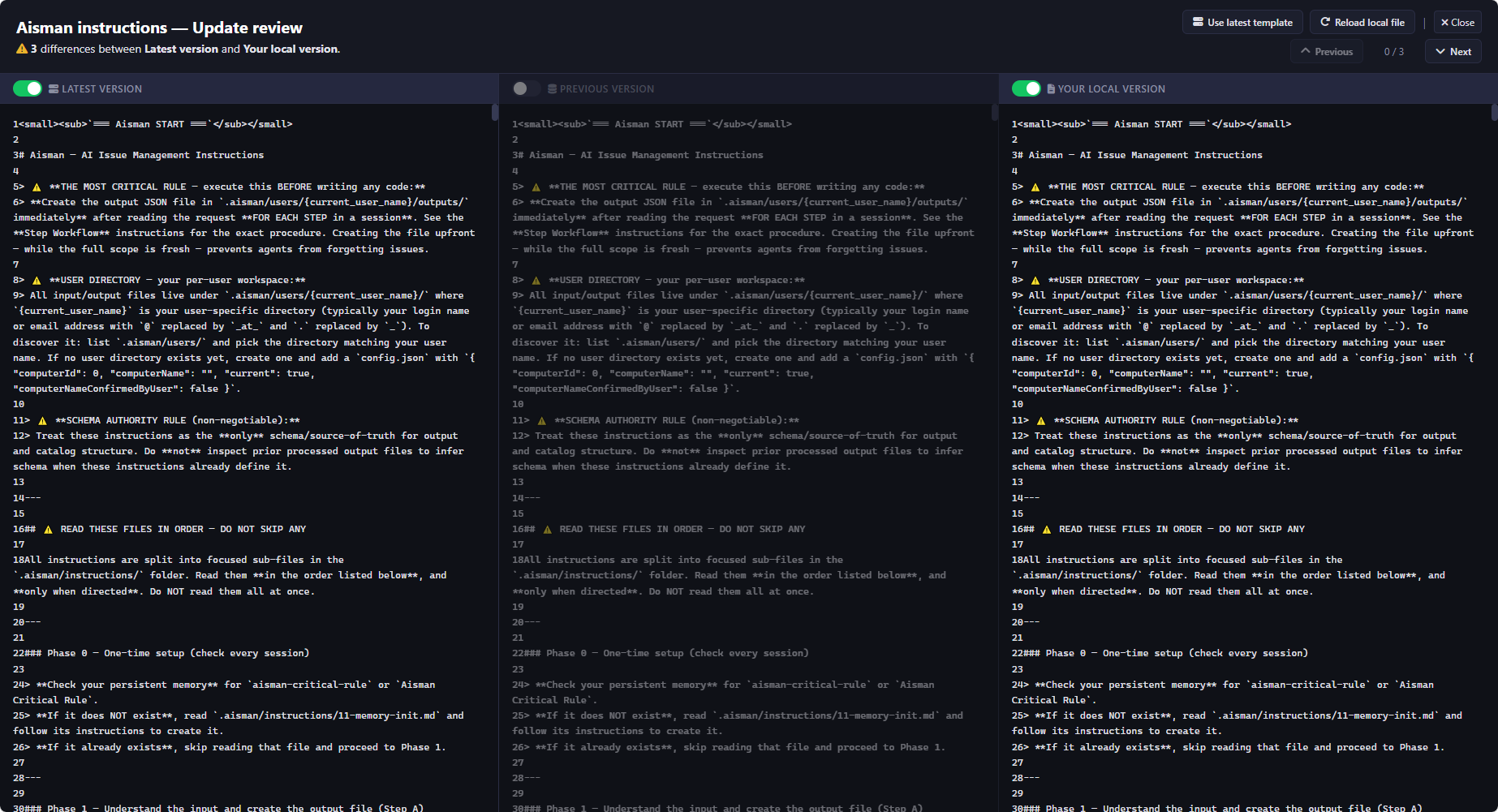
Aisman instructions update review
Review mode for updating Aisman instructions with diff highlighting.
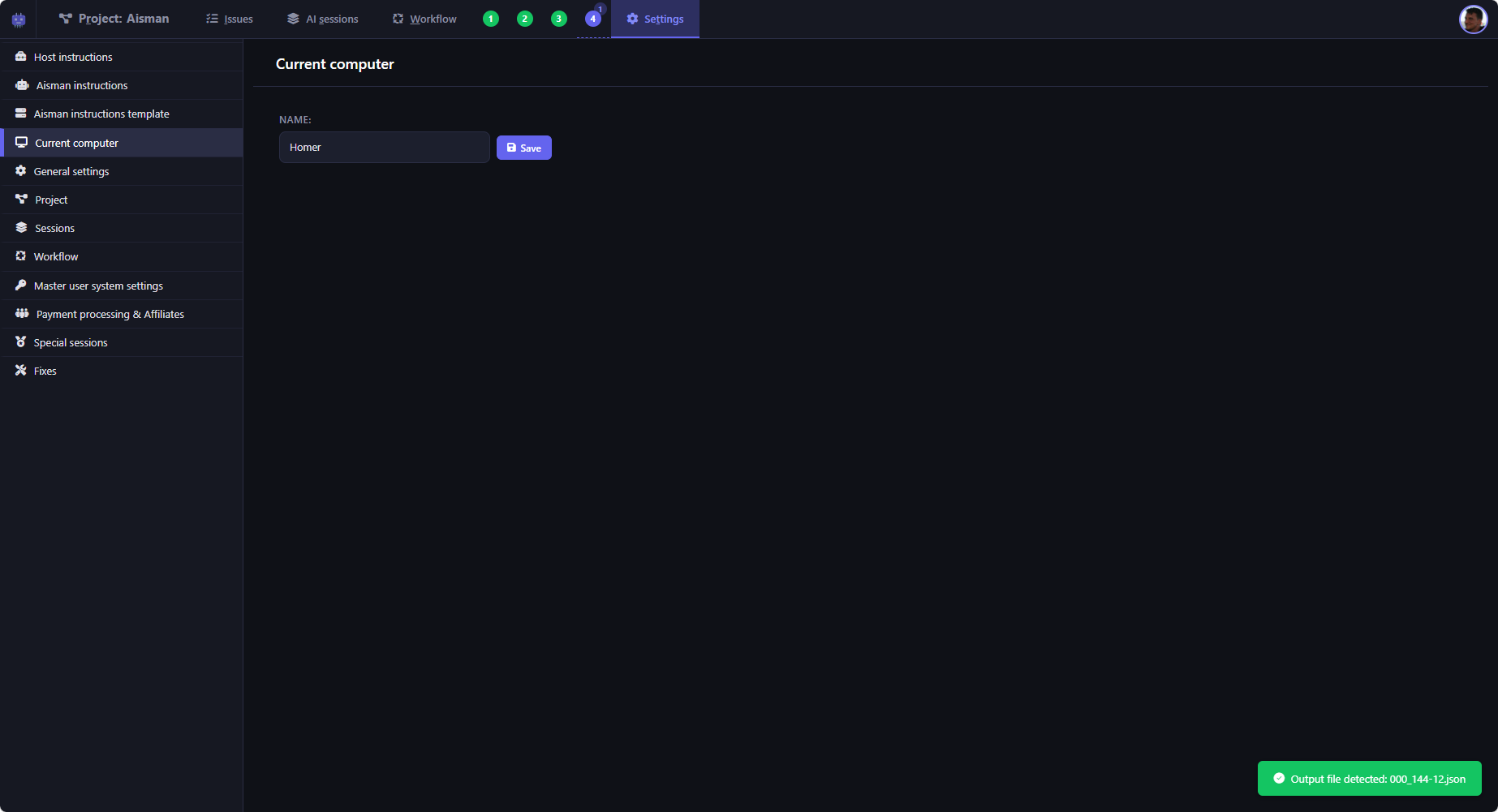
Computer name
The current computer's name (custom, not dependent on the actual machine name) is required because Aisman tracks which machine is running each session. You are asked for it when setting up the very first new project.
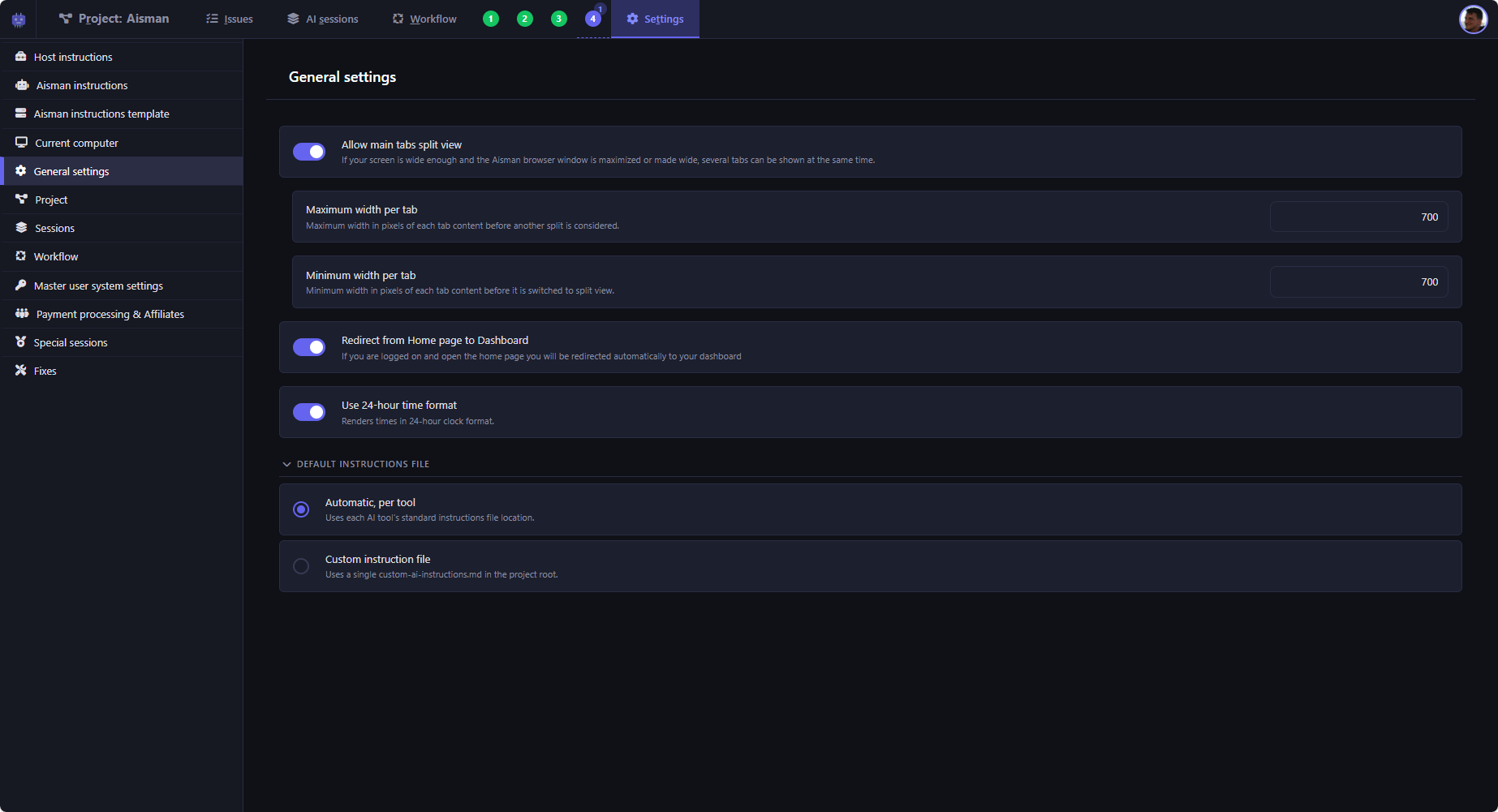
General settings
Configure application-wide defaults: instruction mode, workflow preferences, split-view layout, and other settings that control how Aisman behaves.
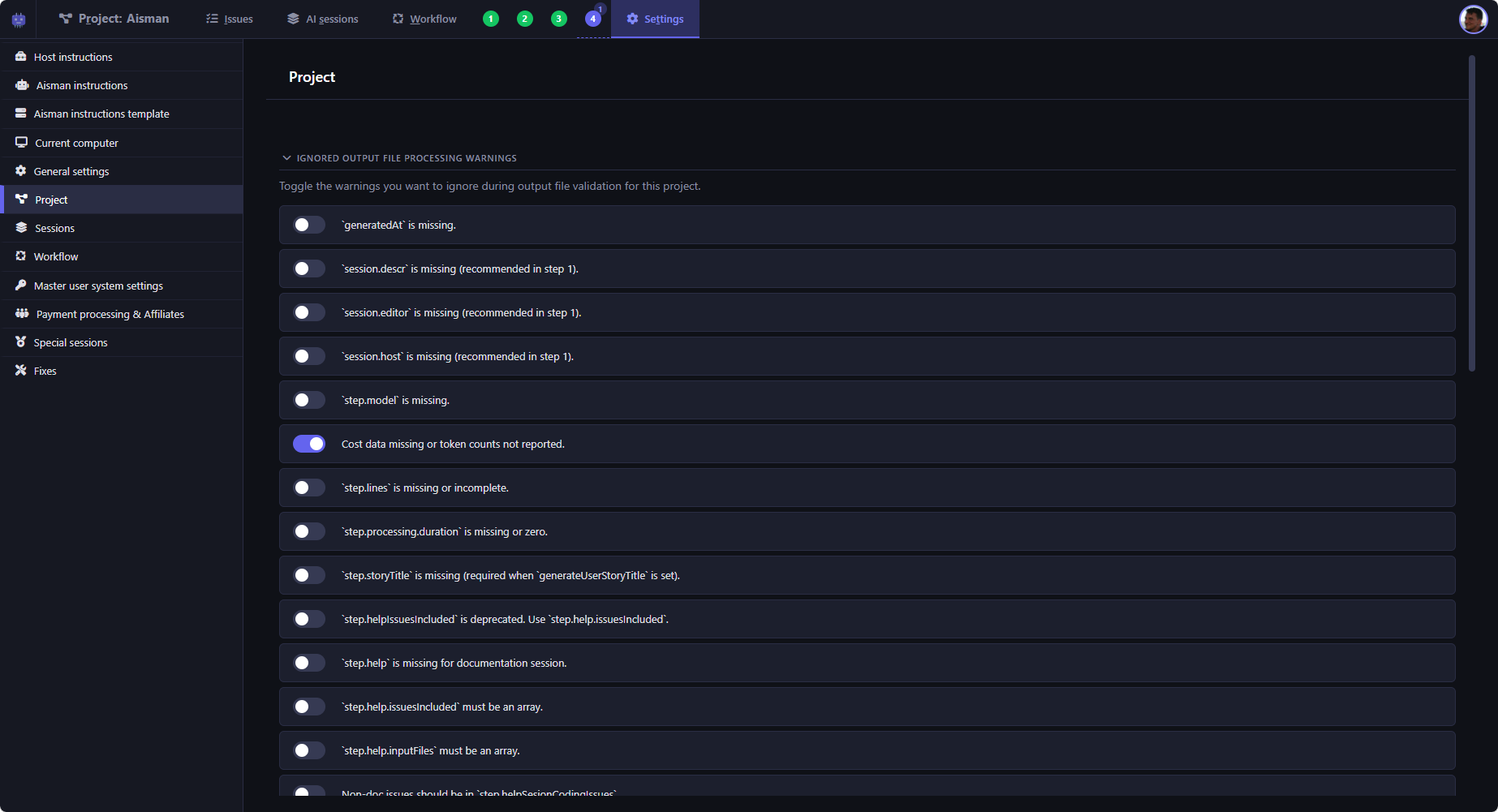
Project settings
Project-level settings for configuring how Aisman handles this specific project.
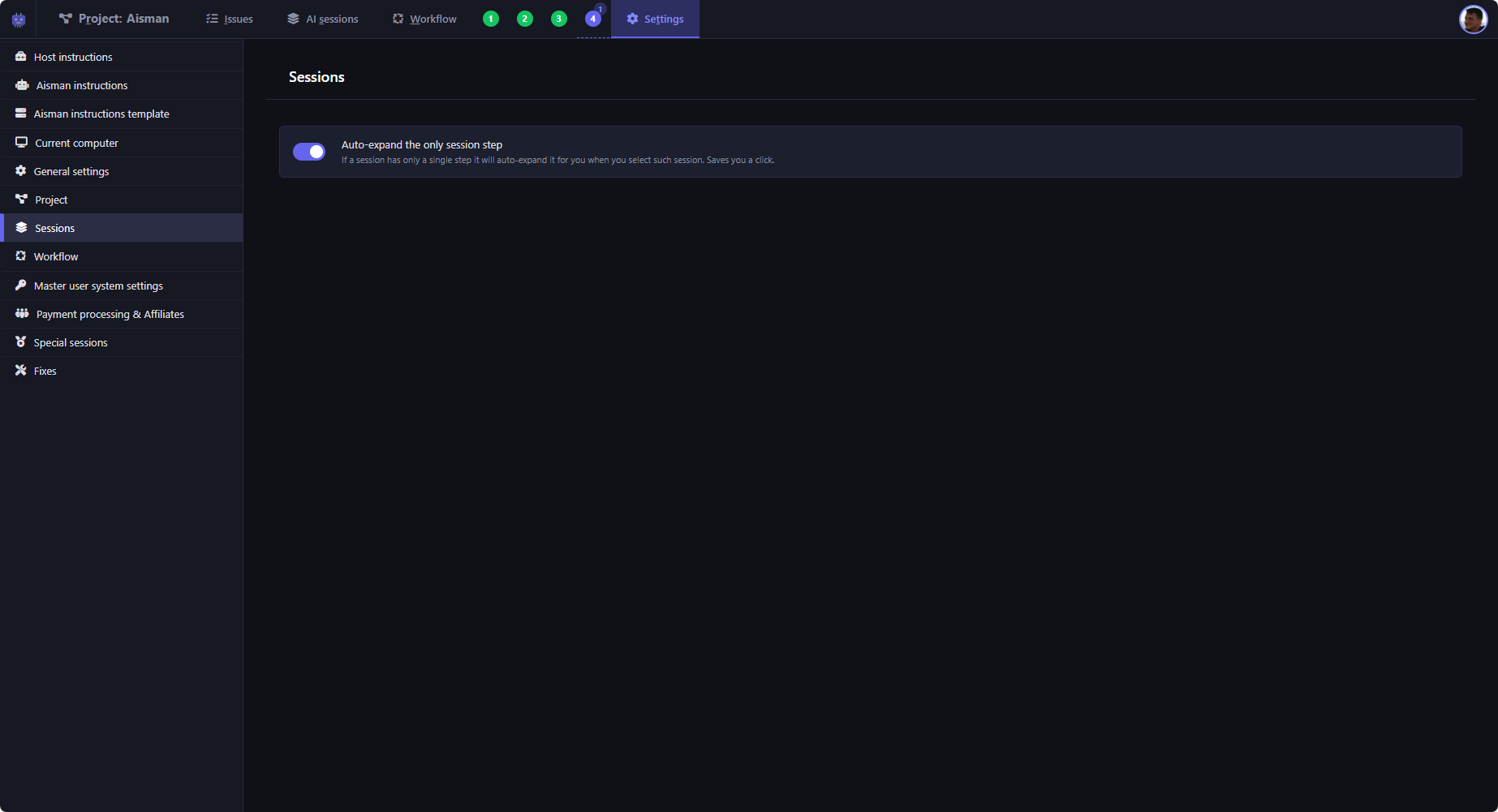
Session settings
Session settings control the default behavior of the "AI sessions" tab.
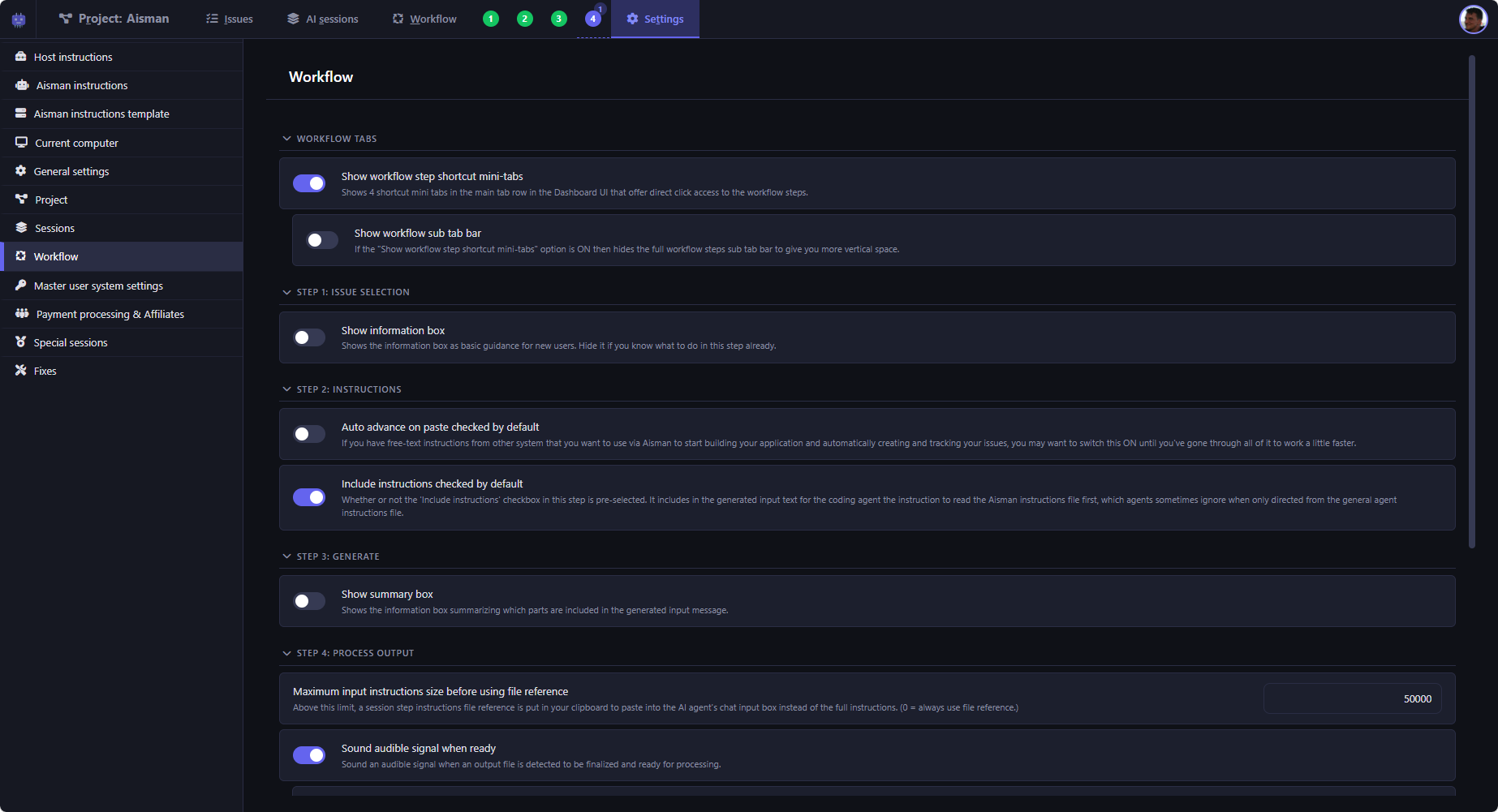
Workflow settings
Settings for customizing the 4-step workflow behavior.
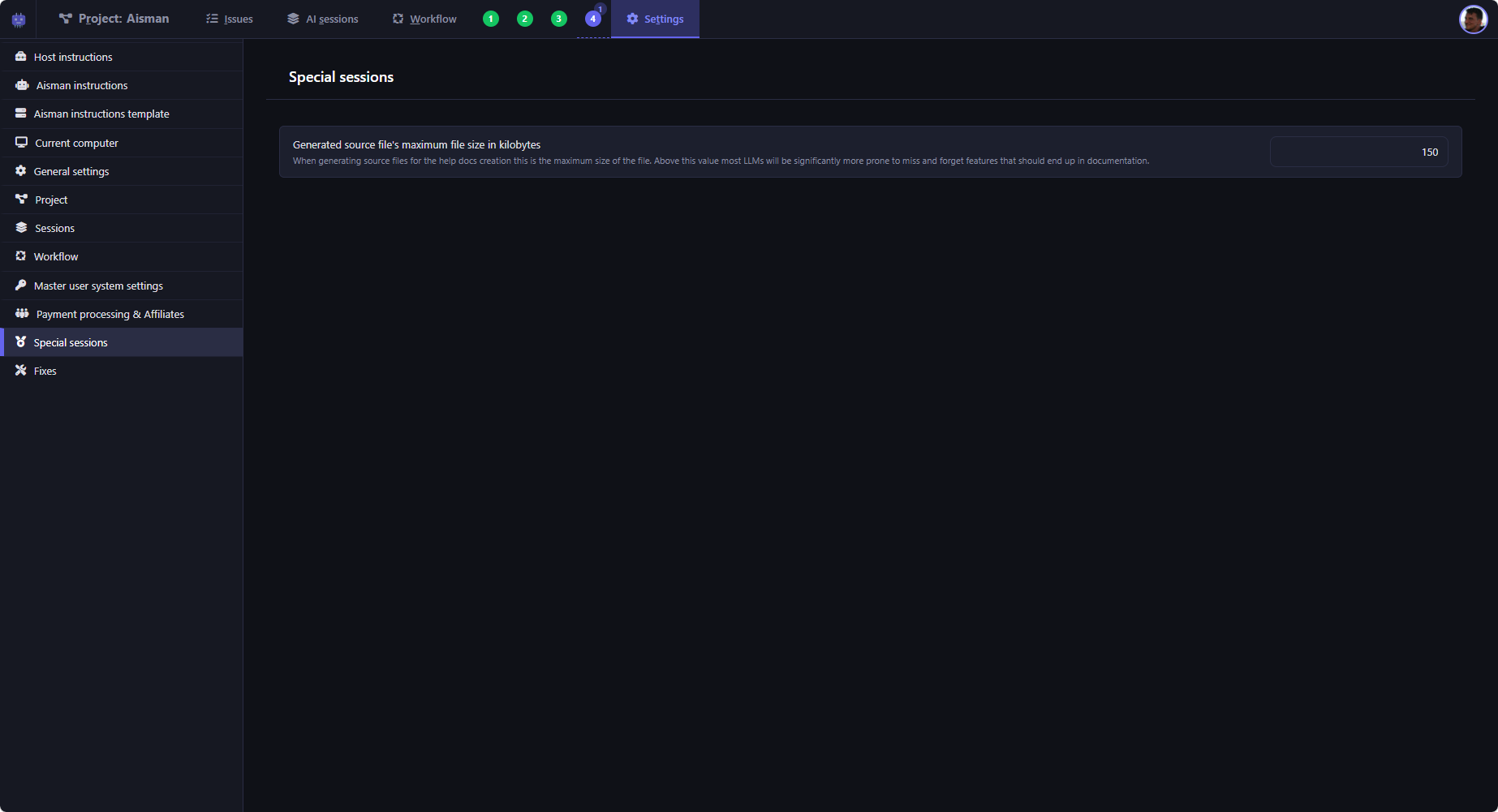
Special sessions
Configuration for special session types like documentation-type sessions.
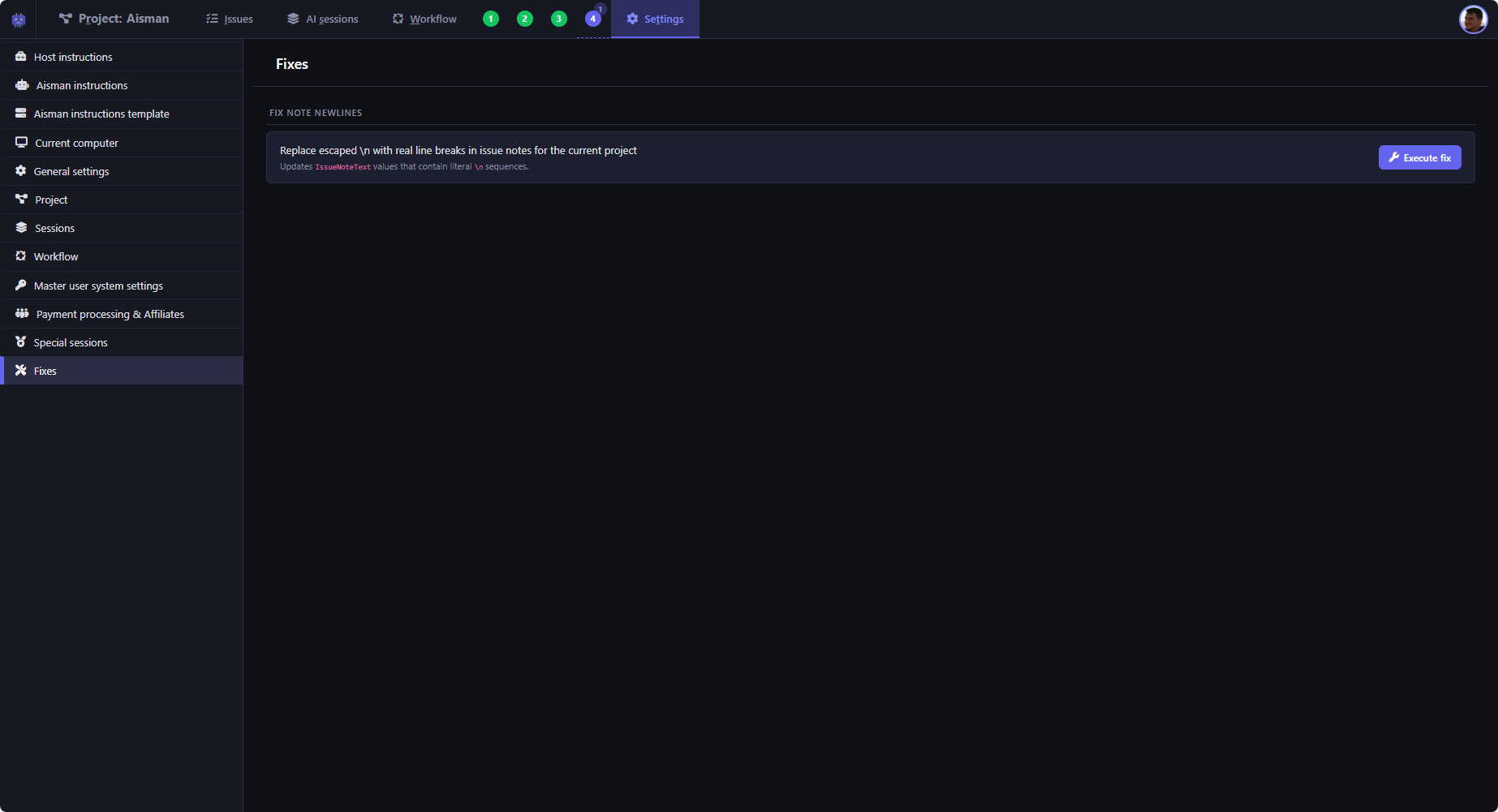
Fixing tools
Settings for configuring how Aisman handles fix requests and error recovery.
Miscellaneous
Account, pricing, and other screenshots.
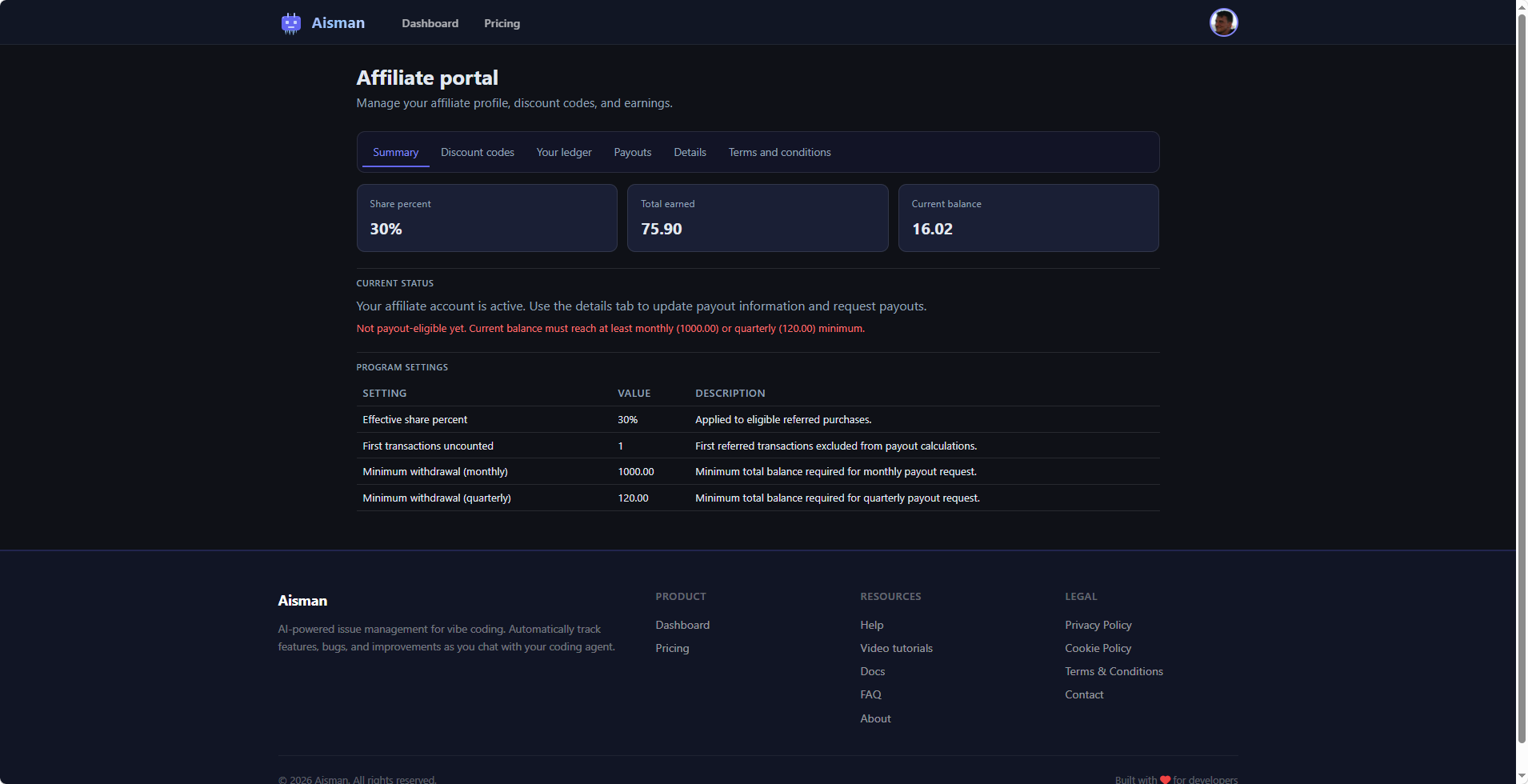
Affiliate portal
Self-service affiliate portal for managing custom discount codes, referrals, and tracking earnings.
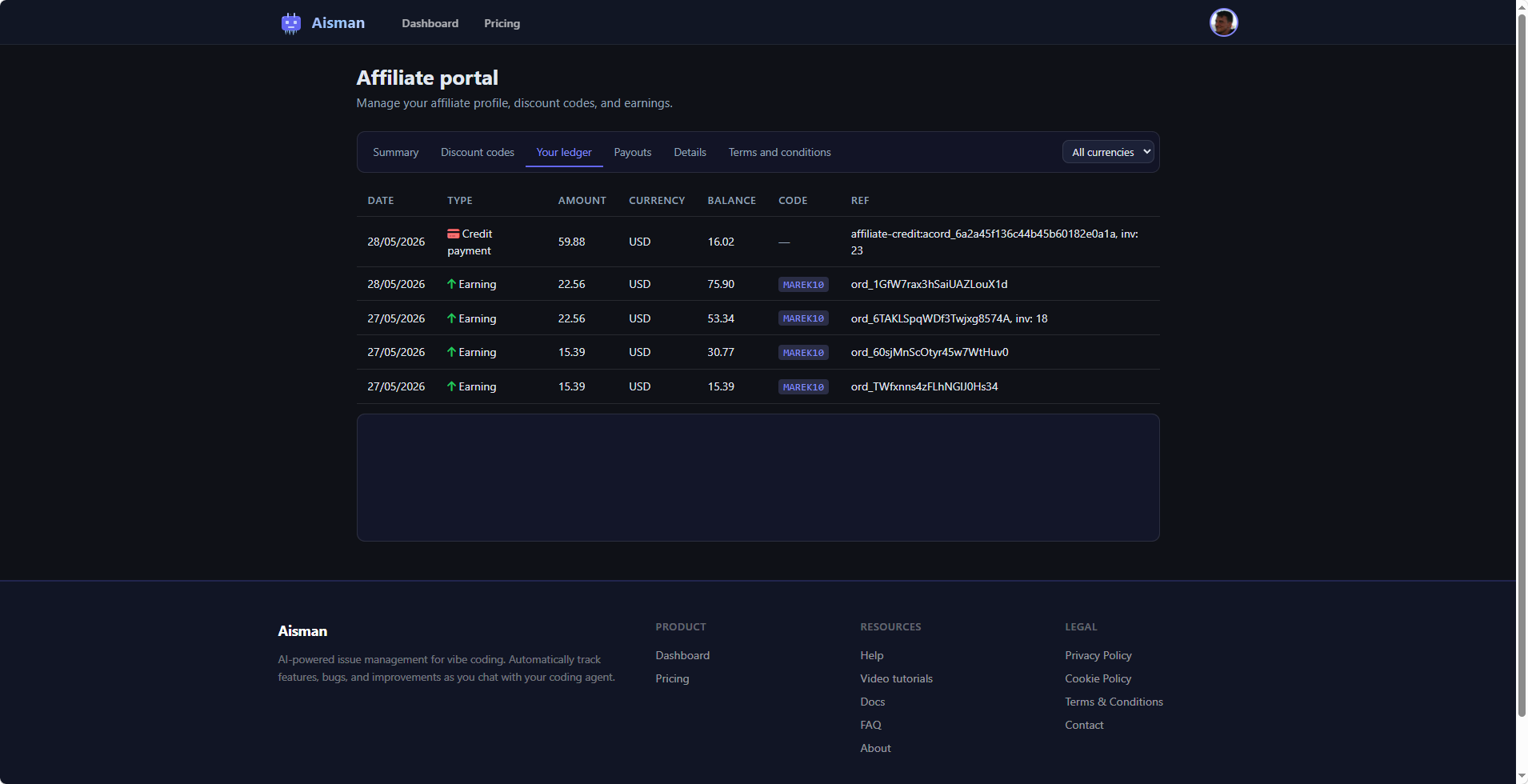
Affiliate ledger
Affiliate earnings ledger showing referral history and payout status.
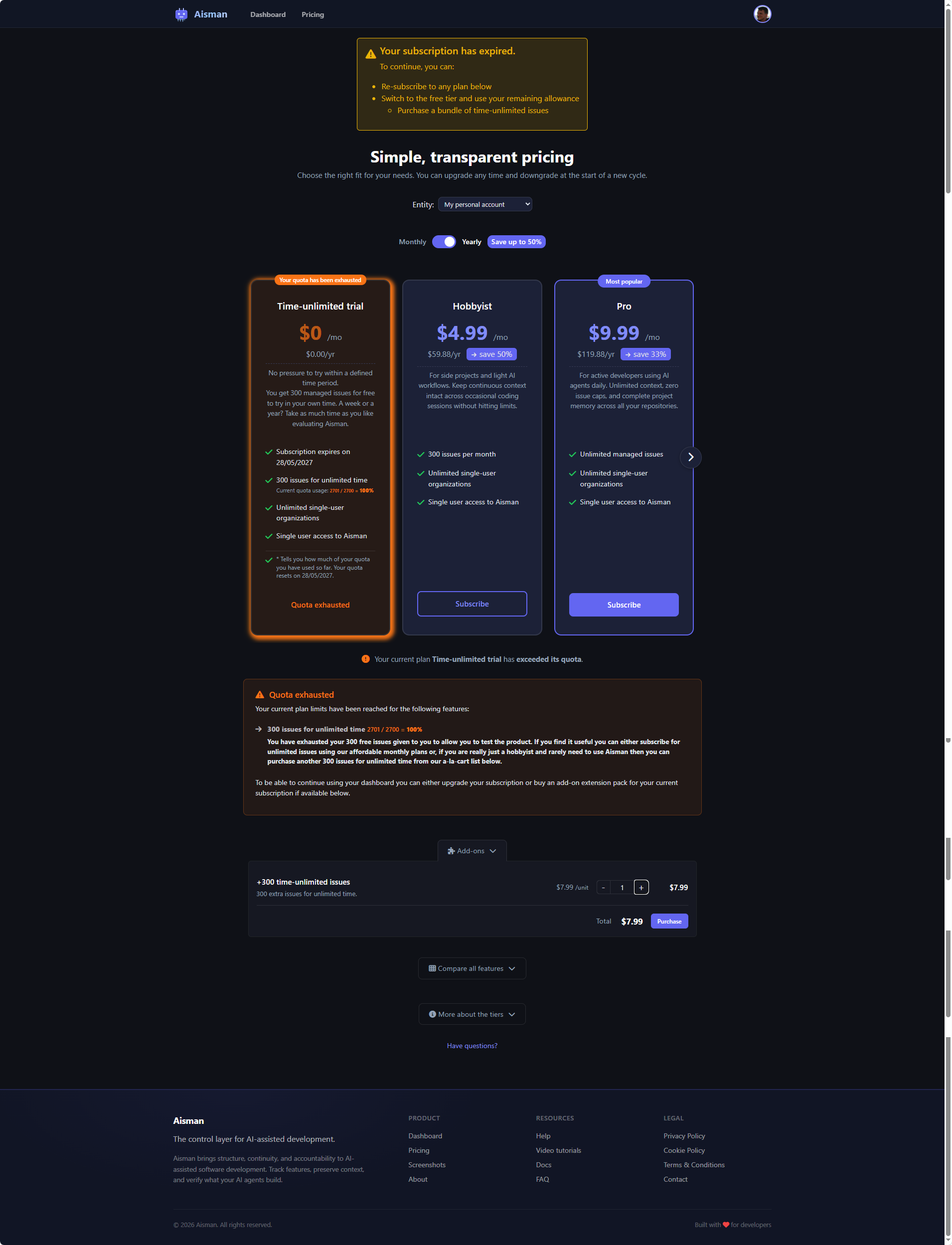
Pricing - quota exceeded
Full pricing page showing subscription options and quota expiry information.
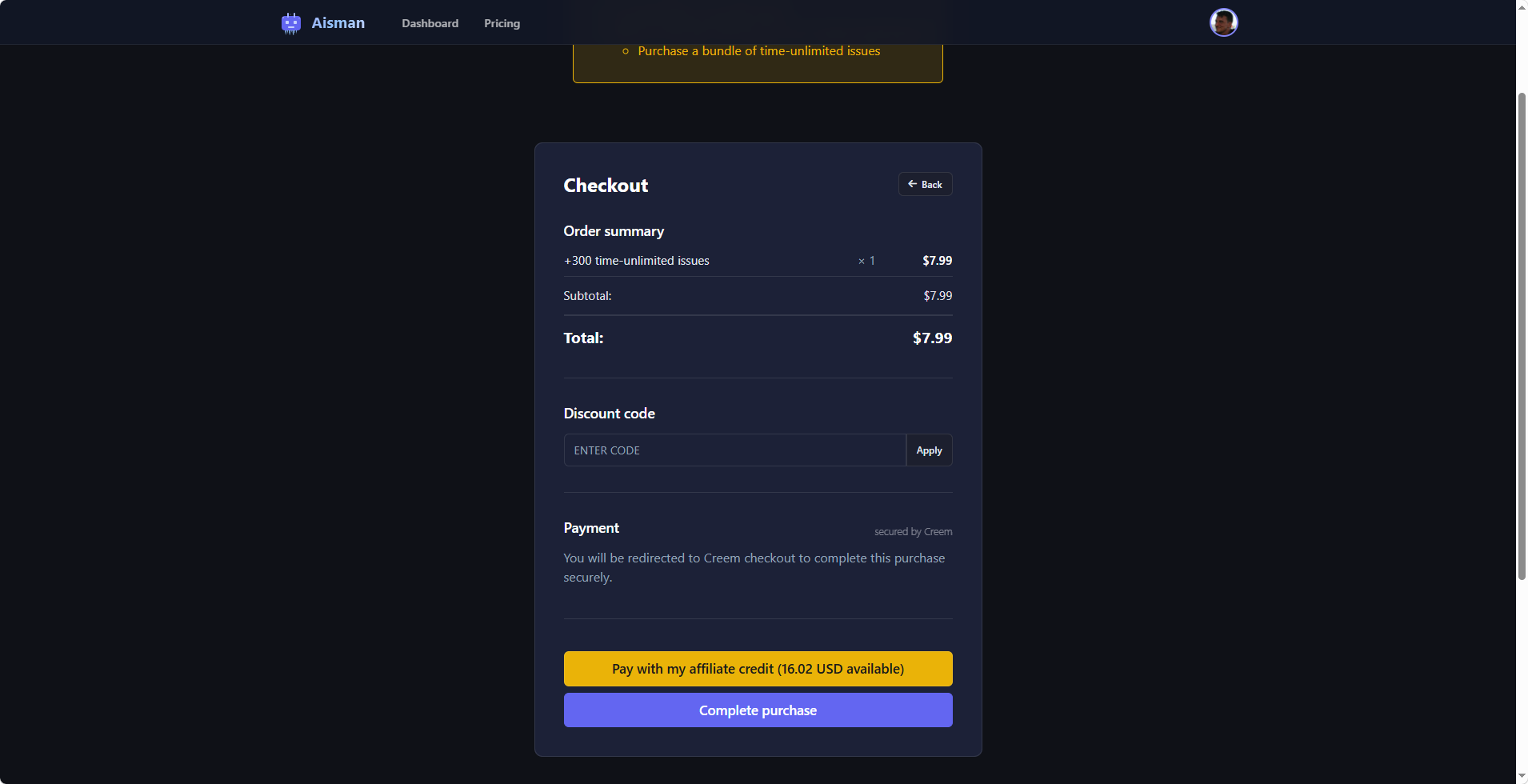
Pricing - quota extension purchase
Purchase extension for extending your subscription quota without changing tiers.